
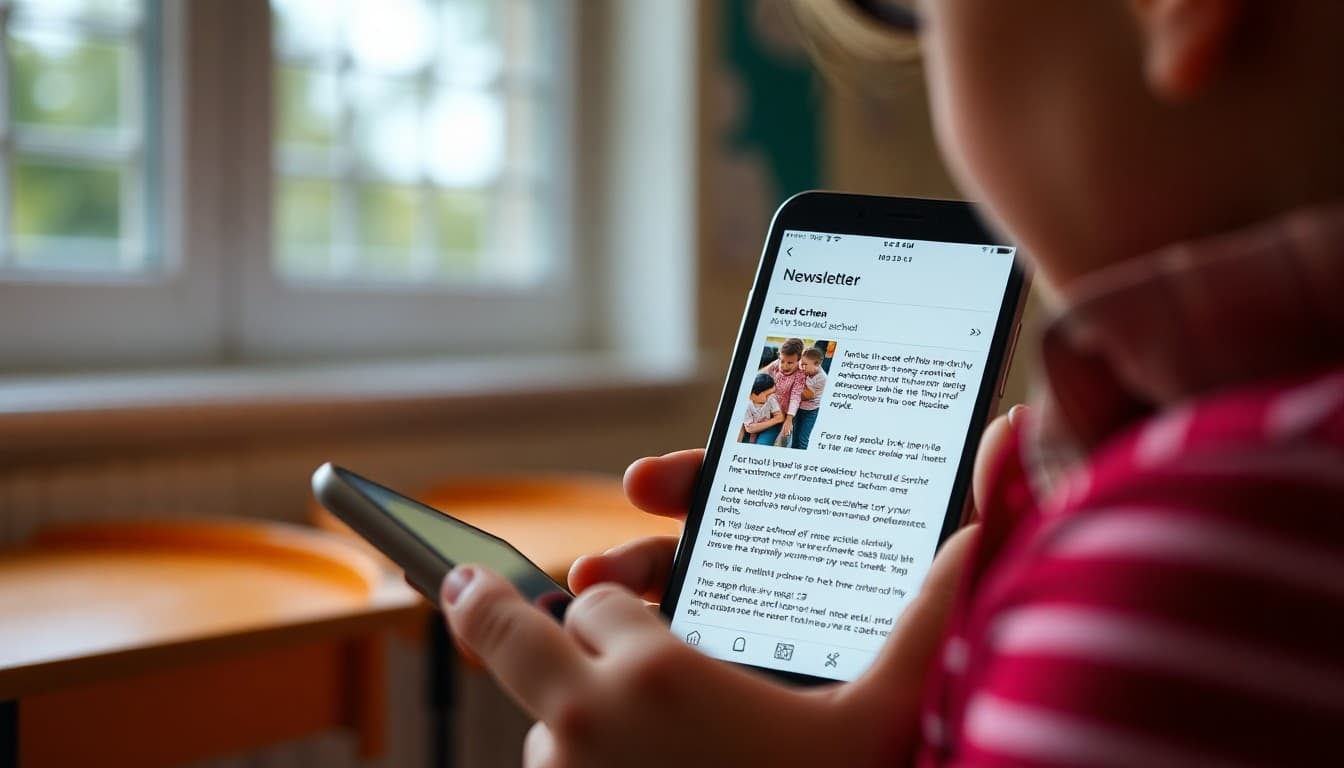
School Newsletter Dark Mode: What It Is and How to Design for It

Dark mode went from a novelty to a default setting on many devices and email clients within just a few years. What was once a setting power users would specifically enable is now automatically active for many families who have never consciously chosen it. Your school newsletter may be looking completely different than you designed it for a substantial portion of your readers, and you might not know it because you are testing on a light-mode screen. Understanding dark mode and designing for it is now a basic email design competency rather than an advanced one.
How Dark Mode Transforms Email
Different email clients handle dark mode differently, which is part of what makes it complex. Some clients invert the entire email, turning dark text on white backgrounds into white text on black backgrounds. Others only darken the background without inverting text colors, which can leave light-colored text looking invisible on the new dark background. Some clients try to detect and respect explicit color declarations in the email CSS and some ignore them entirely. The result is that the same newsletter can look dramatically different in Gmail dark mode on Android, Apple Mail dark mode on iPhone, and Outlook dark mode on desktop. Testing your newsletter in at least one dark mode context before sending is the only reliable way to know what your dark mode readers are seeing.
The Logo Problem
The most common dark mode display problem for school newsletters is the logo. Many school logos are designed with dark colors on a white or transparent background. When a dark mode email client inverts the email, a dark logo on a transparent background can become nearly invisible against the now-dark background. The fix is either to use a version of the logo that has a visible outline or background that reads in both modes, or to use a logo image with a white or solid-color background block rather than a transparent one. Many schools have a white-reversed version of their logo in their brand assets. If yours does, use it in your email newsletter header with explicit background color specified so it reads clearly in both modes.
Text and Background Color Combinations
High-contrast text and background combinations that work in light mode do not always survive dark mode transformation. A dark navy text on a white background that looks clean in light mode might become white text on white, or dark text on near-black, depending on how the email client applies dark mode. The safest approach for school newsletter text is to use explicit inline color declarations for critical text rather than relying on default values that email clients may transform unpredictably. For most school newsletters, using standard dark text on white backgrounds with the school's primary color reserved for headers and accents is both the most readable approach and the one that degrades most gracefully under dark mode transformations.
Images in Dark Mode
Full-color photographs are generally safe in dark mode because they contain their own color information and are usually not significantly altered by dark mode transformations. The problematic images are those with transparent backgrounds, white elements meant to be seen against a light background, or design elements that depend on a specific background color for visual coherence. If you use decorative design images or graphic elements in your newsletter with transparent backgrounds, test them specifically in dark mode. Consider adding an explicit background color to image containers to prevent the background from being transformed in unexpected ways.
Testing Dark Mode Before You Send
Testing dark mode does not require technical expertise. Enable dark mode on an iPhone or Android phone by going to display settings, then send a test copy of your newsletter to the email app on that phone and open it. What you see is representative of what a significant portion of your families are seeing every time you send. If the logo is invisible, the colors are harsh, or the text is hard to read, that is the experience your families are having. Most of the fixes are simple: use a different logo variant, add an explicit background color to a section, or adjust a text color. Finding these issues in a two-minute test preview is always better than sending to 600 families and then noticing the problem.
Get one newsletter idea every week.
Free. For teachers. No spam.
Frequently asked questions
What is dark mode and why does it matter for school newsletters?
Dark mode is a display setting that inverts or darkens the background of an interface, typically showing white or light-colored text on a dark background instead of dark text on a white background. Many phones, tablets, and email clients apply dark mode automatically at night or when the system is set to dark mode. Newsletters not designed for dark mode can display with broken contrast, invisible logos, or illegible text when viewed in dark mode.
What percentage of school newsletter readers use dark mode?
Estimates vary, but dark mode adoption is high, particularly on iPhone where dark mode is easy to enable and many users keep it on permanently. Studies suggest 40 to 55 percent of smartphone users use dark mode at least some of the time, with higher adoption in evening reading contexts. For school newsletters opened in the evening, dark mode readers may represent the majority.
What are the most common dark mode problems in school newsletters?
Logos with transparent backgrounds that have dark-colored elements become invisible on dark backgrounds. White text on white or near-white backgrounds that was readable in light mode becomes unreadable when inverted. Images that rely on a specific background color for design cohesion look disjointed in dark mode. And custom background colors that look professional in light mode may look harsh or odd when dark mode transforms them.
How can schools design newsletters that work in dark mode without being design experts?
Using a newsletter platform that handles dark mode compatibility automatically is the simplest solution. When designing manually, use PNG images with transparent backgrounds saved as separate versions for light and dark display, avoid white-only logos, use high-contrast text-to-background combinations that work in both modes, and test your newsletter in dark mode before sending.
Does Daystage handle dark mode for school newsletters?
Daystage newsletters are designed with email rendering compatibility in mind. The platform's template system helps ensure newsletters display well across different email clients and display modes, reducing the risk of dark mode display problems that would otherwise require manual CSS workarounds.

Adi Ackerman
Author
Adi Ackerman is a former classroom teacher and curriculum writer with 8 years in K-8 schools. She writes about school communication, parent engagement, and what actually works in real classrooms.
More for Technology
Ready to send your first newsletter?
3 newsletters free. No credit card. First one ready in under 5 minutes.
Get started free