

Infographics in School Newsletters: How to Make Complex Information Easy to Read
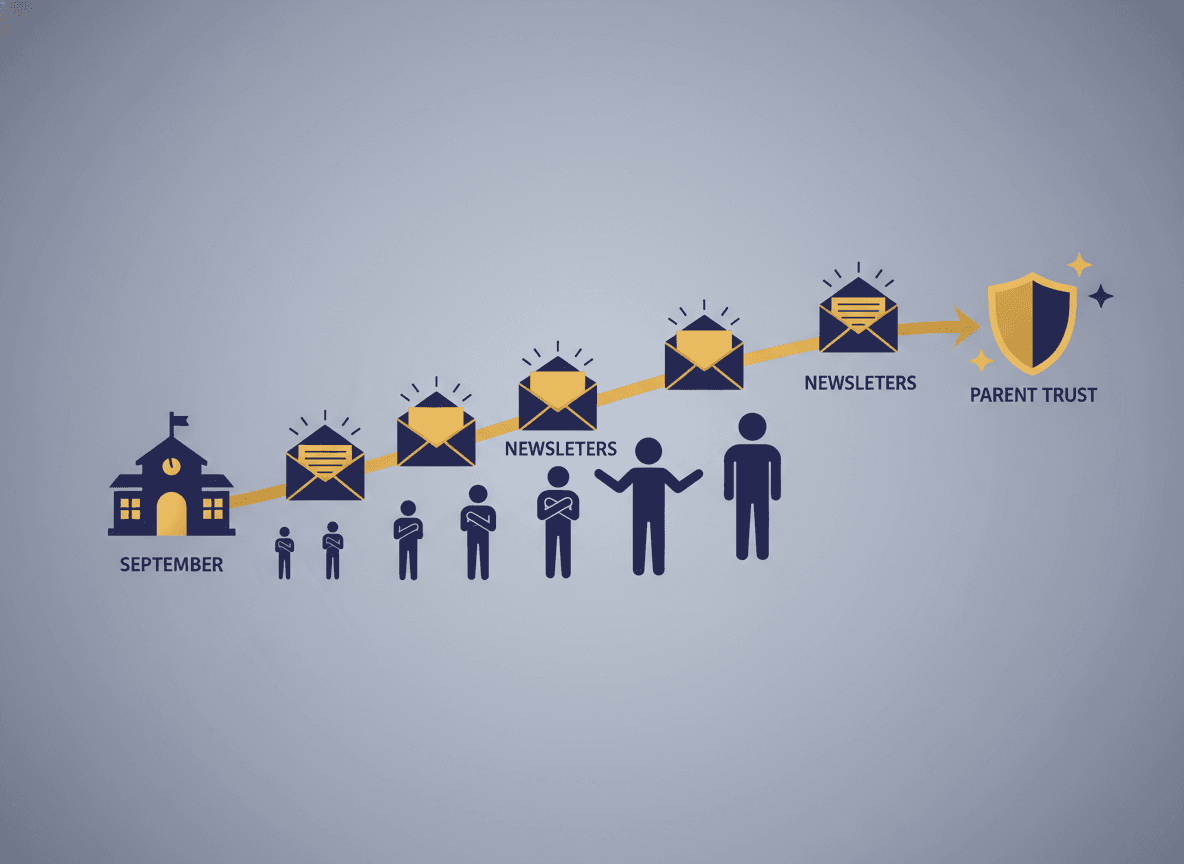
A school newsletter explaining the immunization deadline in three paragraphs and a table requires a parent to work to understand it. The same information as a two-column checklist takes 15 seconds to read and sticks better. Most teachers do not use visual formats in their newsletters not because they lack the ideas but because creating visuals feels technically difficult. It is not, once you know the right approach.
When Visuals Beat Text
The decision to use an infographic instead of text should be based on the nature of the information. Schedules, timelines, multi-step processes, and comparisons are almost always clearer as visuals. The question to ask is: "Can a parent understand this at a glance, or do they need to read it carefully?"
A monthly calendar is almost never better as text. A list of attendance policies is almost always better as a simple two-column table than as a paragraph. The school year testing schedule, broken into months with color coding by grade, is exponentially more useful as a visual than as a list of dates.
Personal updates, tone-dependent explanations of policies, and anything where nuance matters are still better as written text. Visuals are a complement to text, not a replacement.
Three Infographic Types Every Teacher Can Make
The calendar or event timeline is the most universally useful newsletter visual. A monthly block calendar showing key dates, with color coding for different event types, gives families an at-a-glance reference they will return to all month. Creating one in Canva takes about ten minutes once you have a template.
The process diagram explains how something works in steps. The enrollment process, the homework routine, the steps to sign up for an event. A numbered visual diagram with simple icons is clearer than a numbered list in a paragraph.
The data highlight presents one number with context. "82 percent of students turned in homework on time this month" as a simple circle chart or bold large-number graphic is more readable and more memorable than the same statistic in a sentence.
The Four Rules for Mobile-Readable Infographics
Most parents will see your newsletter on a phone. An infographic designed for a desktop screen often fails on mobile. Four rules: use large text (minimum 14pt equivalent), limit elements to what is essential, use high-contrast color combinations, and test on your own phone before sending.
A busy infographic with ten data points and small labels reads well on a 24-inch monitor and is completely unusable on a 6-inch phone screen. Design for the smallest screen your families are using.
Keep It Consistent Week to Week
Families who recognize the visual format of your newsletter from one issue to the next scan it faster and extract information more efficiently. If you always put the week's calendar visual in the same spot and use the same color palette, parents stop having to search for what they need.
Building a reusable template for your most common infographic types saves time every week. Create the calendar template once, update the dates, and the visual is done in two minutes.
Get one newsletter idea every week.
Free. For teachers. No spam.
Frequently asked questions
When should a school newsletter use an infographic instead of text?
Use an infographic when you are communicating a schedule, a sequence of steps, a comparison between options, or a data point that benefits from visual context. Calendars, process diagrams, attendance statistics, and program comparison charts are all stronger as visuals than as text paragraphs. Text is better for narrative updates, nuanced explanations, and any communication that requires tone and relationship to land correctly.
What tools can teachers use to create simple infographics for newsletters?
Canva is the most accessible and has free school-appropriate templates. Google Slides with simple shapes works for basic process diagrams. Piktochart and Venngage offer education-specific infographic templates. For most teachers, Canva's free tier is more than enough to create a clean, professional visual without graphic design experience.
How do you make sure an infographic is readable on a phone?
Test it. Open the newsletter on your own phone before sending and pinch-zoom the infographic. If the text is too small to read without zooming, the labels are too small. Either simplify the infographic, increase text size, or link to a larger version. On mobile, fewer elements and larger text always wins.
Can infographics help with multilingual families?
Yes, significantly. A visual calendar or process diagram communicates across language barriers better than a paragraph of text. Families with limited English literacy can often understand a well-designed visual schedule even when they cannot read the surrounding text. When you translate the newsletter, the infographic often needs minimal modification.
How does Daystage support visual content in school newsletters?
Daystage supports image embedding in newsletters, so teachers can create infographics in Canva or a similar tool and insert them directly into the newsletter layout. The platform optimizes images for both email and mobile display, so the visual looks good across all devices families use to open their newsletters.

Adi Ackerman
Author
Adi Ackerman is a former classroom teacher and curriculum writer with 8 years in K-8 schools. She writes about school communication, parent engagement, and what actually works in real classrooms.
More for Parent Engagement
Ready to send your first newsletter?
3 newsletters free. No credit card. First one ready in under 5 minutes.
Get started free