
How to Design a School Newsletter Infographic

The standardized testing schedule spans six weeks, involves four different subjects, and has three grade-specific variations. Writing this in prose produces three paragraphs that most parents skim and misread. Putting it in a simple visual timeline produces something families screenshot and put on the refrigerator. That is the difference an infographic makes: it turns complex information into something people can actually use.
When an Infographic Is Worth Making
An infographic pays off when the information has a shape that text cannot efficiently convey. Timelines, step-by-step processes, comparisons, and statistics with a clear relationship are all strong infographic candidates. Announcements, narratives, and simple factual statements are not. Before spending time on an infographic, ask whether the information would be faster to read as a bullet list. If yes, make a bullet list.
The Simplest Useful Infographic: The Schedule Visual
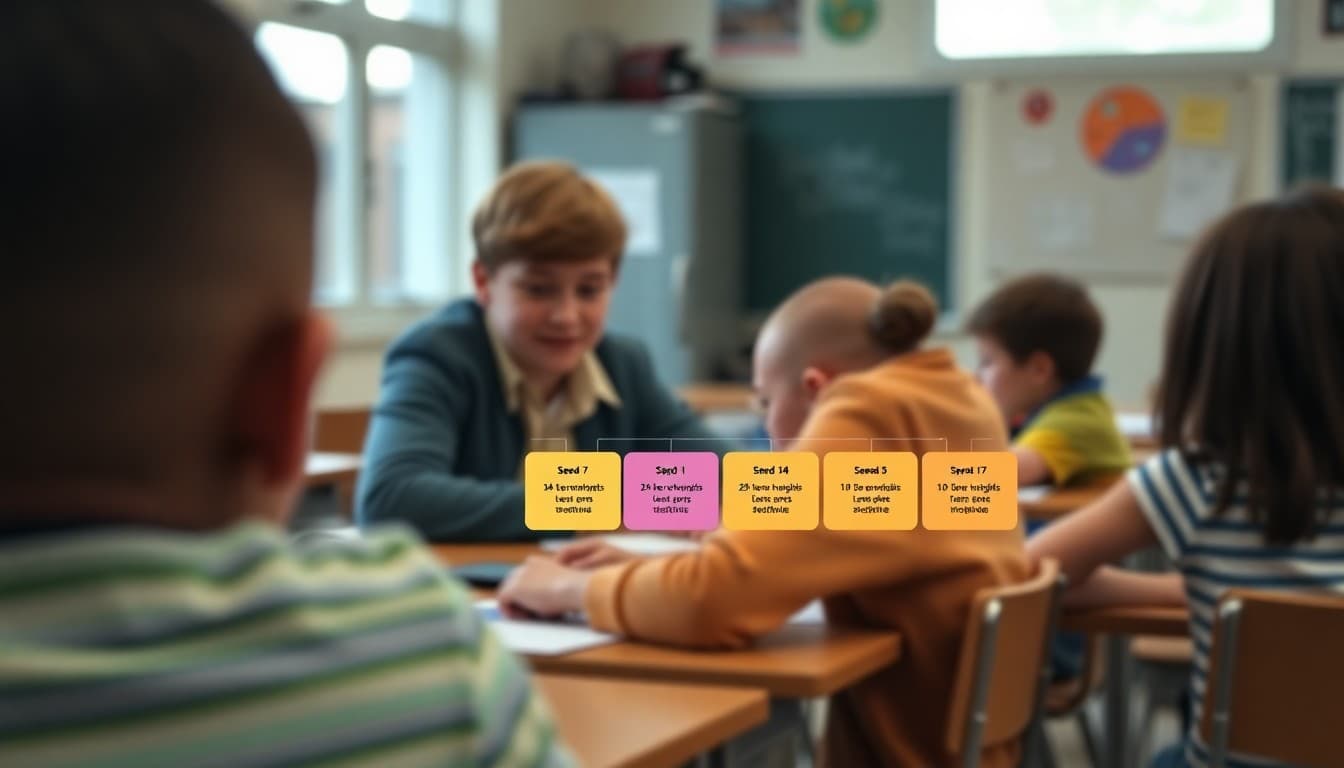
The most frequently useful infographic for school newsletters is a visual schedule or timeline. Testing dates, project milestones, the sequence of events in a school year, or the steps in a permission process all benefit from being shown rather than described. A horizontal timeline with four to six labeled points is something most parents can read in five seconds. Creating one in Canva takes about 15 minutes using an existing timeline template.
Choosing the Right Chart for Your Information
Not every visual needs to be a chart, but when you have comparative data, choose the right type. A bar chart works for comparing quantities: how many students in each reading level. A pie chart works for parts of a whole: how the school budget is allocated. A timeline works for sequences. A checklist visual works for processes. Using the wrong chart type, such as a pie chart for a timeline, makes information harder to read, not easier.
School Colors and Brand Consistency
Use your school's colors as the primary palette for newsletter infographics. This is not just a brand consideration. It helps families immediately recognize the infographic as school communication rather than an external document. Most Canva templates allow you to swap colors with one click. Consistent use of school colors across all infographics over the year creates a visual identity that families associate with trusted information.
Accessibility in Infographic Design
Design infographics so the information is accessible without relying on color alone. If the infographic uses red and green to distinguish two categories, add a label or icon so colorblind readers can distinguish them. Make sure all text in the infographic is at least 10 points and has sufficient contrast against its background. Test the infographic by looking at it in grayscale: if the information is still clear without color, the design is accessible.
File Format and Upload
Export infographics as PNG files rather than JPEGs for crisp text at any size. Before uploading to your newsletter, open the PNG on your phone and zoom in to check that all text is readable at newsletter display size. If text becomes blurry or too small to read, increase font sizes in the original and re-export. Always add alt text when uploading the infographic so screen readers can convey the information to parents who use assistive technology.
The Caption That Doubles the Value
Add a one-sentence caption below every infographic that states the main takeaway. Not a description of the graphic, but the conclusion: "All third grade students will take the reading assessment during the week of March 17." This caption serves parents who skim past the image and parents who cannot load images on their device. It also reinforces the key message for everyone who does look at the graphic.
Get one newsletter idea every week.
Free. For teachers. No spam.
Frequently asked questions
When does a school newsletter need an infographic?
An infographic is worth the time when the information has visual logic that text cannot capture efficiently: a schedule with multiple dates and phases, a step-by-step process, a comparison between two options, or a set of statistics that becomes meaningful when shown together. If the information can be communicated clearly in two sentences, write the two sentences instead.
What free tools can teachers use to create newsletter infographics?
Canva is the most widely used free tool for school newsletter infographics. It has pre-built templates for timelines, schedules, comparison charts, and statistics displays. Google Slides with its chart and shape tools also works and has the advantage of being in the Google Workspace environment many teachers already use. Both tools allow export as a PNG image that can be uploaded directly into a newsletter.
How much design skill does it take to make a good newsletter infographic?
Very little, if you use a template as a starting point. The goal for a school newsletter infographic is clarity, not design sophistication. Swap in your school colors, replace the template content with your actual data, and make sure the most important information is the largest and most prominent element. A clean, simple infographic made in 20 minutes beats a complex one that takes two hours and is harder to read.
What should I avoid when designing a school newsletter infographic?
Avoid putting too much information in one infographic. If a parent needs to read every element carefully to understand it, the infographic is not doing its job. Avoid color combinations that fail in black-and-white printing. Avoid font sizes below 10 points, which become unreadable on a phone. And avoid decorative elements that add visual complexity without adding information.
Can infographics be included in Daystage newsletters?
Yes. Upload the infographic as a PNG or JPG image using the photos block in Daystage. For a hero visual, upload it to the hero image slot with a descriptive alt text. Inline infographics work best when placed immediately after the text section they summarize or visualize. Add a caption below the image that repeats the key takeaway for readers who are skimming.

Adi Ackerman
Author
Adi Ackerman is a former classroom teacher and curriculum writer with 8 years in K-8 schools. She writes about school communication, parent engagement, and what actually works in real classrooms.
More for Guides
Ready to send your first newsletter?
3 newsletters free. No credit card. First one ready in under 5 minutes.
Get started free