

How to Switch From Smore to Daystage: A Step-by-Step Migration Guide
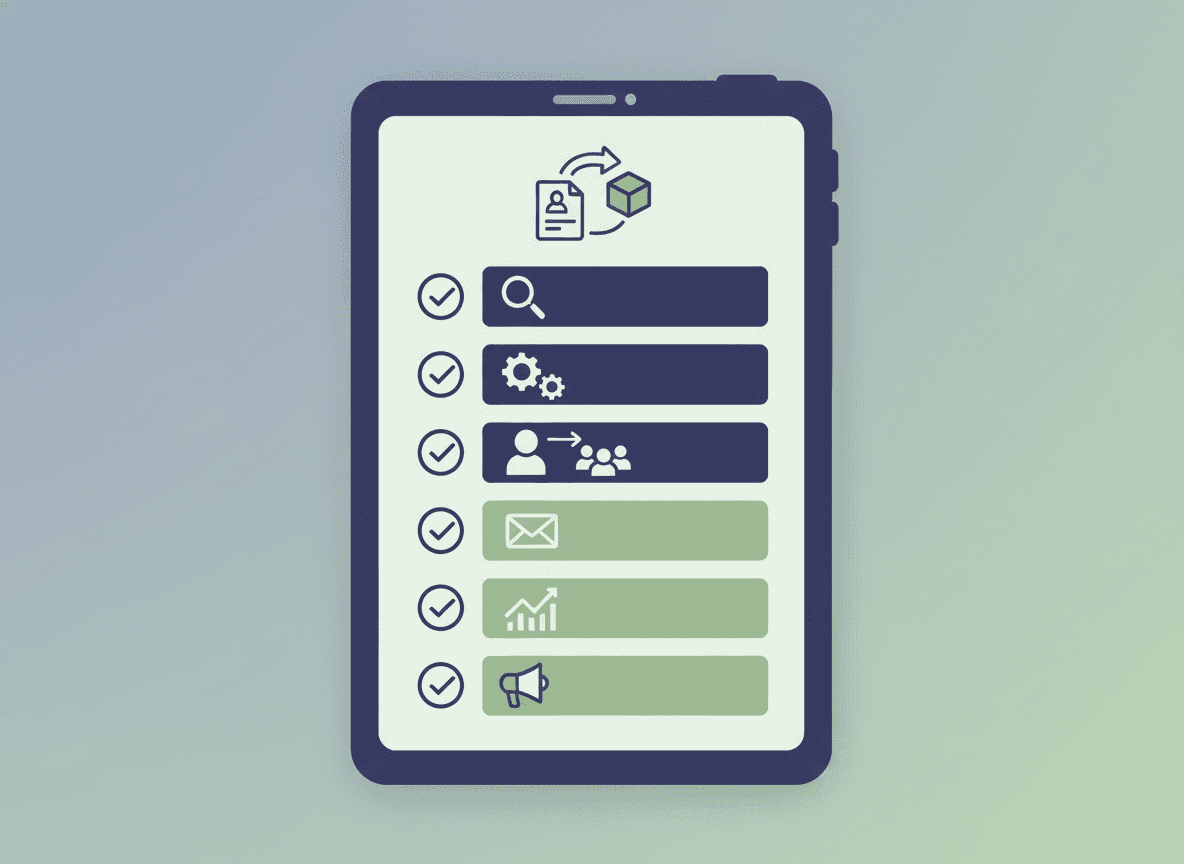
Switching newsletter tools feels like a bigger project than it is. Most teachers who switch from Smore to Daystage complete the migration in under 30 minutes and send their first Daystage newsletter the same day.
The core difference you will notice immediately: in Daystage, parents receive the newsletter as a formatted email in their inbox, not as a link to click. You also get features Smore does not have, including voice recording (speak for 30 seconds and Daystage writes the newsletter) and AI drafting (describe the week, get a complete draft). This guide covers exactly what to do, in order.
Before you start
There are two things worth doing before you create your Daystage account:
- Export your parent email list from Smore. In Smore, go to your account contacts or the newsletter subscriber list and export as a CSV. You will import this into Daystage.
- Note your school name, color (hex code if you know it), and have your school logo file ready to upload. Setting up the school profile takes 3 minutes if you have these ready.
Step 1: Create your Daystage account
Go to daystage.com and sign up with your Google account or email address. No credit card required. The free plan covers 3 newsletters free, which is enough for most classroom teachers to get a real feel for it before upgrading.
After signing up, Daystage walks you through a short onboarding that sets up your school profile. Enter your school name, upload your logo, and pick your school color. This takes 3-5 minutes and is the last time you have to think about branding.
Step 2: Import your subscriber list
In Daystage, go to the Subscribers section. Click "Import" and upload the CSV you exported from Smore. Daystage maps the email column automatically. If your Smore export includes parent names, those import as well.
One important note: parents who previously unsubscribed from your Smore newsletters should not be added to your Daystage list. Check your Smore account for an unsubscribe list before exporting, and remove those addresses from your CSV. Re-adding people who unsubscribed is a CAN-SPAM violation.
If you manage your subscriber list in a spreadsheet or your school's SIS system rather than Smore's contact system, import from there directly. Daystage accepts a CSV with at minimum one column: email address.
Step 3: Create your first newsletter template
You have two ways to start. The fastest is to import your last Smore newsletter directly: on the New Newsletter screen, click "Import from Smore" and paste the link to a published newsletter. Daystage rebuilds it as an editable draft, complete with your text, images, and layout, so your first Daystage newsletter already looks like the one your parents recognize.
If you would rather start clean, build your first newsletter from scratch using the block editor instead, and that newsletter becomes your repeating template. Either way, once you have a newsletter you like, duplicating it each week is the workflow going forward.
A typical classroom newsletter structure in Daystage:
- Heading block: "Weekly Classroom Update" or your usual newsletter title
- Text block: Brief message from the teacher
- Heading block: "What We're Learning"
- Bullet list block: Current units in each subject
- Heading block: "Upcoming Events"
- Event blocks: One per upcoming date
- Heading block: "Reminders"
- Bullet list block: Homework, supplies, anything parents need to act on
To add each block, type "/" and select the block type from the picker, or click the "+" button. For the slash command, type "/" followed by the first letters of the block name to filter. "He" for heading, "Bu" for bullet list, "Ev" for event.
Step 4: Preview and test
Before sending to parents, send a test email to yourself. In Daystage, the "Send Test" button is available at any point while editing. Check two things:
- The newsletter appears in your inbox as the actual email content, not as a link to click. This is Daystage's inline HTML delivery working correctly.
- Your school logo, name, and color appear in the header correctly. If anything looks wrong, go back to your school profile and check the logo size and color code.
Also preview the newsletter in Daystage's live preview pane before sending the test. The preview updates in real time as you edit, so you can see the formatted result without sending yourself a test email every time you change something.
Step 5: Send your first newsletter
When you are happy with the newsletter, click "Send." Daystage asks you to confirm the subscriber list and shows the count of recipients. Confirm and send.
Daystage delivers the newsletter to your parent list within a few minutes. You can check delivery status and open rates in the analytics section, typically within an hour of sending.
Step 6: Duplicate for next week
This is the step that makes Daystage fast for weekly newsletters. On your newsletter dashboard, find last week's newsletter and click "Duplicate." Daystage creates an identical copy. Update the heading date, change the "What We're Learning" content, update the upcoming events, and send.
Once you have done this once, the weekly workflow takes under 10 minutes.
What to do with your Smore account
Do not delete your Smore account immediately. Keep it accessible for a few weeks so you can reference past newsletters if parents ask about something from earlier in the year. If Smore hosts public URLs for your newsletters, those links continue to work as long as the account is active.
After a month or two, if you are not using Smore at all, cancel the subscription if you are on a paid plan. The free Smore account can remain inactive without cost.
Common questions
Do I need to notify parents about the change? No. Parents receive the newsletter in email from you. The tool that sends it is invisible to them. The email address the newsletter comes from may be different (Daystage uses their own sending infrastructure), so some parents may notice the sender name is slightly different. Adding a one-line note in your first Daystage newsletter is optional but not required.
What about past Smore newsletters? You can bring any of them over: paste the public link and Daystage rebuilds that newsletter as an editable draft. It imports one newsletter at a time, so for older issues you just want on file rather than rebuilt, keeping your Smore account accessible is still the simplest option.
What if I want to go back to Smore? Your Smore account and content stay intact. Export your subscriber list from Daystage and import it back into Smore if needed.
The bottom line
Switching from Smore to Daystage is a 20-30 minute project, not a day-long migration. The main steps are exporting your subscriber list, setting up your school profile in Daystage, and creating your first newsletter. The first one takes slightly longer. Every subsequent newsletter is faster.
Get one newsletter idea every week.
Free. For teachers. No spam.
Frequently asked questions
When is the right time to switch from Smore to Daystage?
The best time to switch is at the start of a new semester or school year. This lets you introduce Daystage to parents as your new newsletter format without mid-year confusion. Switching mid-year is also possible, but announcing the change in your last Smore newsletter helps parents recognize the new format.
What do teachers need to have ready before migrating from Smore to Daystage?
Export your subscriber list from Smore as a CSV file, note the sections you use in your current newsletter layout, and have your school name, colors, and logo ready. These three items cover everything you need for setup. The migration itself takes under an hour.
How long does it take to migrate from Smore to Daystage?
Most teachers complete the migration in 30 to 45 minutes. That includes creating a Daystage account, setting up school branding, importing the subscriber list, building the first newsletter template to match their usual structure, and sending a test. The actual send time matches what Smore required.
What are common problems teachers run into when switching from Smore to Daystage?
The most common issue is rebuilding the newsletter structure from memory rather than writing it down first. Before you switch, note exactly which sections your Smore newsletter includes and in what order. This makes template setup in Daystage faster and ensures you do not accidentally skip a section families expect.
What is the best approach for teachers who want a smoother migration from Smore to a direct email newsletter tool?
Daystage has a step-by-step setup flow that walks you through branding, subscriber import, and template creation. Because Daystage delivers newsletters as direct email rather than a link, the transition is also an upgrade in how parents receive your content, which is worth mentioning when you announce the switch.

Adi Ackerman
Author
Adi Ackerman is a former classroom teacher and curriculum writer with 8 years in K-8 schools. She writes about school communication, parent engagement, and what actually works in real classrooms.
More for Guides
School Newsletter Software Comparison 2026: Daystage, Smore, Remind, ClassDojo, and Mailchimp
Guides · 9 min read
Daystage vs. ClassDojo: Choosing the Right Parent Communication Tool for Your School
Guides · 8 min read
School Newsletter Content Calendar: How to Plan a Full Year in One Sitting
Guides · 8 min read
Ready to send your first newsletter?
3 newsletters free. No credit card. First one ready in under 5 minutes.
Get started free