
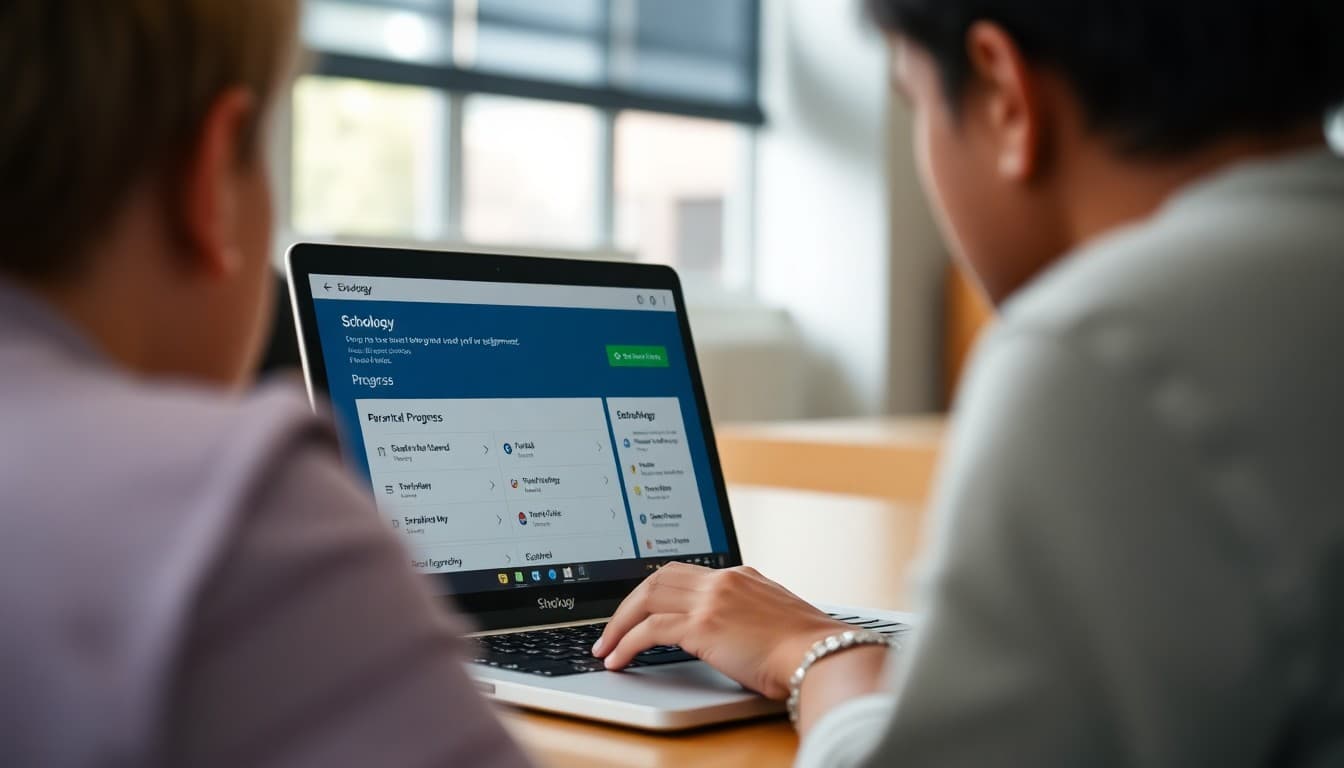
Schoology Parent Newsletter: Navigating the Platform
Schoology is a full-featured learning management system used heavily in middle and high schools. Unlike Google Classroom, which offers limited parent visibility, Schoology gives families real-time access to grades, assignments, and course materials through a parent account. The challenge is that most families have never used it before and need clear setup instructions before they can take advantage of it. A dedicated Schoology parent newsletter makes that transition smooth.
What Schoology Is and Why Your School Uses It
Schoology combines the functions of a learning management system and a grade book. Teachers create digital course pages where assignments are posted, students submit work, and grades are recorded. Students can view course materials, due dates, and their own grades in real time. Parents get a parallel view that shows all of this without the ability to interact with academic content directly. For secondary schools where students have multiple teachers and complex assignment loads, Schoology provides a single organized view of everything due across all subjects.
Getting Your Parent Account: The Access Code
Every parent account in Schoology is tied to an access code. Your school distributes these codes at the start of the year, usually in the back-to-school packet, welcome email, or student registration confirmation. The code looks something like XXXX-XXXXX-XXXXX. To create your parent account, go to app.schoology.com and choose Sign Up. Select Parent as your account type, enter your name and email, create a password, and enter the access code when prompted. If your district uses a different Schoology URL, use that instead. One account can hold access codes for all of your children at the school.
What the Parent View Shows
After logging in, parents see a dashboard summarizing recent activity across all of their child's courses. The Courses tab lists every class the student is enrolled in. Clicking into a course shows the course materials, assignment grades, and teacher announcements. The Grades tab shows an aggregate view of all scores across all courses, which is often the first place parents go. Schoology updates grades as teachers enter them, so a score can appear in the system within minutes of a teacher grading an assignment. Parents who check frequently will see the gradebook filling in throughout the semester.
Notifications: Setting the Right Level
Schoology sends email and push notifications for grade updates, new assignments, teacher messages, and overdue work. The default settings vary by district configuration. Walk families through how to adjust notifications to match their preferences. For most parents, a combination of overdue assignment alerts (turned on) and grade update notifications (set to daily digest rather than real-time) works well. Real-time grade notifications on every assignment can create anxiety if parents see a single low score before a unit is finished and do not have context for how that score fits into the overall grade calculation.
Sample Template Excerpt
Here is a section you can adapt for your own newsletter:
Schoology Parent Account Setup: Do This Before Friday
Your Schoology access code was included in your back-to-school registration confirmation. If you cannot find it, contact [name] at [contact info] and they will send it to you within one business day.
Once you have your code:
1. Go to app.schoology.com and click Sign Up, then Parent.
2. Enter your name, email, and a new password.
3. Enter your access code when prompted.
4. You will immediately see your child's courses. Click Grades in the left menu to see current scores.
We recommend setting up notifications so you receive an email when your child has a missing assignment. That single alert is the one that parents find most useful throughout the year.
How Schoology Grades Differ From Report Card Grades
Families new to Schoology often assume that what they see in the grades tab is the same as the report card grade. It may be, or it may not. Schoology calculates grades based on the grading categories and weights each teacher configures. A teacher who weights tests at 50 percent and homework at 50 percent will show different running totals than one who weights participation and projects more heavily. The report card grade uses the official formula at the grading period close. Explain this in your newsletter so families are not confused when the report card grade differs from what Schoology was showing mid-term.
Teacher Communication Through Schoology
In many district configurations, Schoology allows parents to send messages directly to teachers through the platform. If your district has this feature enabled, mention it in your newsletter and explain how to find the messaging feature. If it is not enabled and teachers prefer email or phone contact, say that clearly rather than leaving families to search for a message button that does not work. Directing families to the right communication channel saves time for both parents and teachers.
Helping Your Child Use Schoology More Effectively
The parent view and the student view are two sides of the same coin. When families are familiar with the platform, they can have more specific and productive conversations about school. Instead of asking "Do you have any homework?" a parent can look at the Upcoming Assignments tab and ask "You have a paper due Thursday. Is the outline done?" That specificity changes the nature of homework conversations from vague check-ins to focused support. Encourage families to spend five minutes together in Schoology once a week, not to monitor, but to plan the week ahead as a team.
Get one newsletter idea every week.
Free. For teachers. No spam.
Frequently asked questions
How do parents access Schoology?
Parents create a Schoology account using an access code provided by the school, usually included in back-to-school packets or sent via email. The access code links the parent account to the student's Schoology profile. Parents sign up at app.schoology.com or the district's Schoology URL, enter the access code during registration, and immediately gain read-only access to their child's courses, grades, and assignments. One parent account can be linked to multiple students.
What can parents see in Schoology?
Schoology parent accounts provide access to a child's course list, assignment grades as they are entered, upcoming due dates, teacher announcements, and attendance records if the school tracks them in Schoology. Parents can also receive direct messages from teachers in some district configurations. They cannot submit assignments, post in class discussions, or alter any academic records. Schoology gives parents more direct visibility than Google Classroom Guardian Summaries, which is one reason many secondary schools prefer it.
What is the difference between Schoology and the student information system?
Schoology is the learning management system where academic work happens. The student information system (PowerSchool, Infinite Campus, etc.) is the official record-keeping system for enrollment, attendance, report card grades, and transcripts. They may show different grade data. Schoology shows grades as they are entered assignment by assignment. The SIS shows official cumulative grades at designated grading periods. Families often need to use both systems for a complete picture.
How do families recover a lost Schoology access code?
Access codes are typically issued once and not stored in a way that makes them easily retrievable later. If a family has lost their access code, the school's main office or technology coordinator can look up the code or generate a new one. Some districts issue codes annually as part of back-to-school registration. Your newsletter should include a specific contact for families who need their access code, ideally with the fastest way to reach them.
How does Daystage work alongside Schoology?
Daystage handles school-wide family communication like newsletters, announcements, and event updates. Schoology handles academic course management. They serve different purposes and work well together. Schools often use Daystage to send a Schoology orientation newsletter at the start of the year, pointing families to setup instructions and explaining what they will find when they log in. Daystage's delivery tracking confirms which families received and opened the newsletter.

Adi Ackerman
Author
Adi Ackerman is a former classroom teacher and curriculum writer with 8 years in K-8 schools. She writes about school communication, parent engagement, and what actually works in real classrooms.
More for Technology
Ready to send your first newsletter?
3 newsletters free. No credit card. First one ready in under 5 minutes.
Get started free