
Using Images in School Newsletters: A Practical Principal's Guide
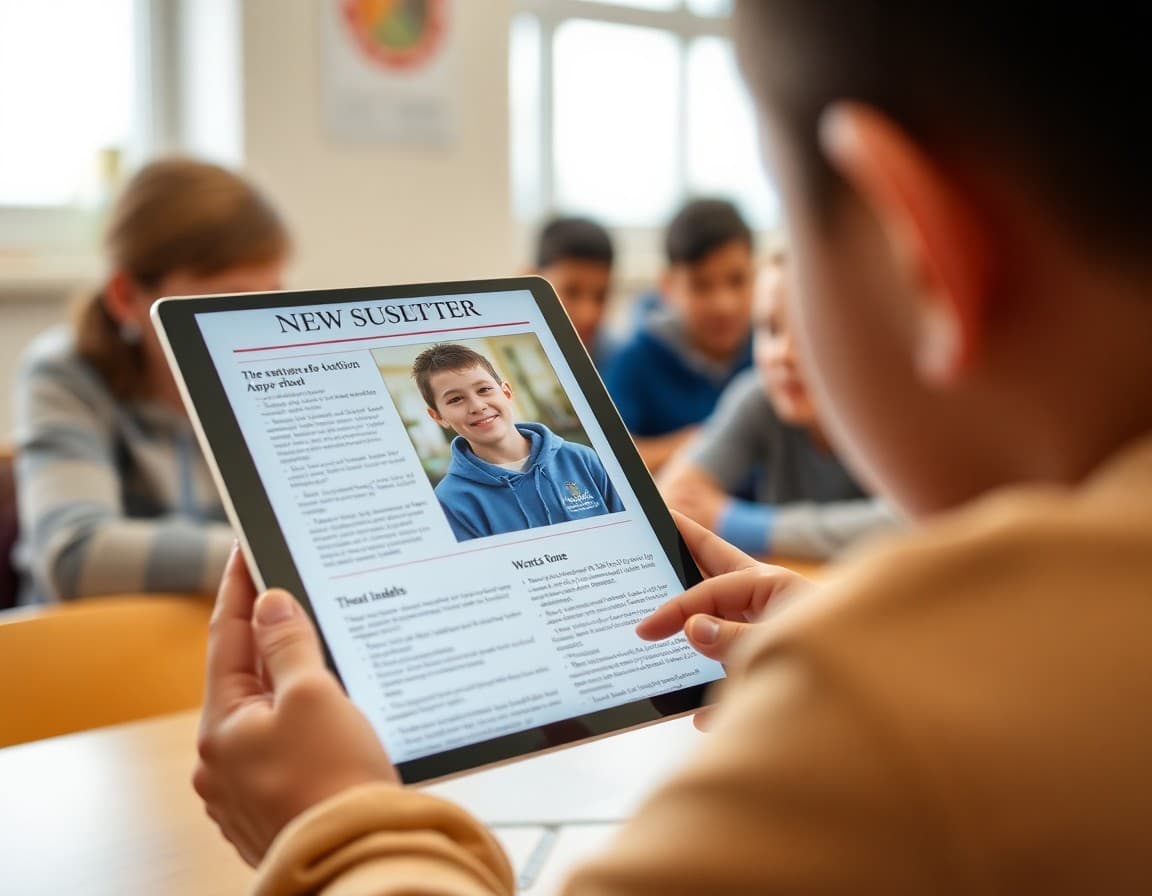
Images are the most engaging element in any school newsletter, and also the element that creates the most problems: permission gaps, oversized files that break email formatting, or generic stock photos that make the newsletter feel impersonal. This guide covers how to use images well without the problems.
Authentic photos beat stock photos every time
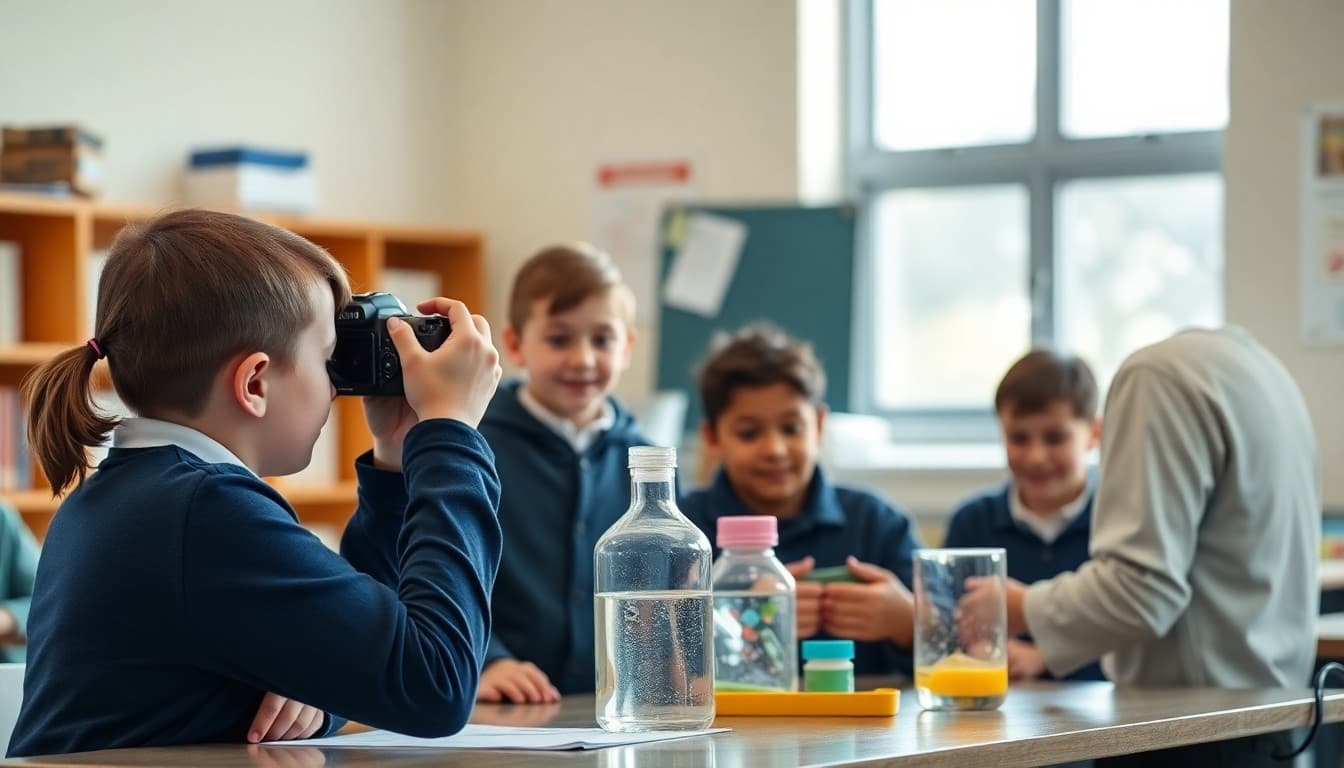
The purpose of photos in a principal newsletter is to show families what their child's school looks like right now. A photo from this month's science fair, a shot of the new library display, a picture of the gardening club planting seeds: these images are specific, authentic, and memorable.
A stock photo of smiling students in a generic classroom tells families nothing about their school. Worse, it signals that you could not be bothered to find a real photo from the actual school. Families notice the difference even if they do not articulate it.
Build a system for collecting real photos
The challenge with authentic photos is getting them reliably. The solution is a system, not a one-time ask. Two approaches that work:
- Weekly photo request to teachers.A short message on Friday afternoon: 'If you captured anything this week worth sharing in the newsletter, email it to [address] by end of day.' Most teachers will not respond every week, but you will accumulate a steady supply.
- Designated photo events. Science fair, field day, back-to-school night, the winter performance: plan to take photos at these events specifically for the newsletter. Assign a staff member if you cannot do it yourself.
Permission is not optional
Before publishing any photo with an identifiable student, verify that the family has given media consent. Most schools collect this at enrollment via a permission form. Maintain a clear list of students whose families have not consented and review it before every newsletter.
For students without consent, there are still ways to include them: wide shots where individual faces are not identifiable, photos of hands and materials in an activity, or photos of the environment rather than the students. You do not need to omit their class or activity from the newsletter, just find a photo angle that respects the restriction.
Keep image files small
Email clients have strict size limits, and large images slow load times on mobile. Before inserting a photo into your newsletter:
- Resize to no more than 1000 pixels wide
- Compress to under 200KB (most phones take photos that are 2 to 5MB)
- Use a free tool like Squoosh or TinyPNG to compress without visible quality loss
A newsletter with a single 4MB photo attached will not load reliably for families on slower connections, and may not display at all in some email clients.
Always write alt text
Alt text is the description that appears when an image does not load and that screen readers use for visually impaired families. Every image in your newsletter needs alt text that describes what is in the photo: 'Third-grade students presenting their science fair projects in the gymnasium.' This is not just an accessibility requirement. It also ensures that families whose email clients block images still get context for what you were trying to show.
One strong image beats three mediocre ones
When reviewing your photos before sending, ask: does this image show something specific and authentic that happened at our school? If the answer is yes, use it. If the answer is 'it is a nice enough photo,' keep looking or hold it for next month.
Daystage makes image insertion and formatting straightforward: upload, add alt text, and the tool handles sizing and rendering across email clients. You do not need to think about the technical side.
Get one newsletter idea every week.
Free. For teachers. No spam.
Frequently asked questions
Do I need permission to publish student photos in the school newsletter?
Yes. Most schools collect media release permissions at enrollment. Check your records before publishing any identifiable student photo. For families who have not consented, use only photos where students are not identifiable, or photograph activities and environments without individual faces. When in doubt, get specific written permission for the specific use.
What kinds of photos work best in a principal newsletter?
Authentic in-school moments work better than posed group shots. A class working on a project, students presenting at the science fair, a teacher reading aloud in a circle, the new mural in the hallway: these images show family members what the school looks like and feels like, which builds connection. Clip art and generic stock photos do not.
How many images should a principal newsletter include?
One to three images per newsletter is the right range. One strong, authentic photo is better than five mediocre ones. Too many images slow load time on mobile, can break the email layout in some clients, and dilute the impact of each individual photo. Choose the one or two images that best represent what happened at school this month.
What are the technical requirements for newsletter images?
Keep images under 200KB to avoid slow loading on mobile. Use JPEG for photos and PNG for graphics or logos. Newsletter images should be at least 600 pixels wide for clean rendering on desktop. Always include alt text describing the image for families using screen readers.
What tool helps principals send newsletters efficiently?
Daystage handles image insertion, sizing, and rendering across email clients without requiring technical knowledge. You upload the image, it handles the formatting. Alt text is easily added in the interface.

Adi Ackerman
Author
Adi Ackerman is a former classroom teacher and curriculum writer with 8 years in K-8 schools. She writes about school communication, parent engagement, and what actually works in real classrooms.
More for Principals
Ready to send your first newsletter?
3 newsletters free. No credit card. First one ready in under 5 minutes.
Get started free