

Principal Newsletter: Getting Families Set Up on the Parent Portal
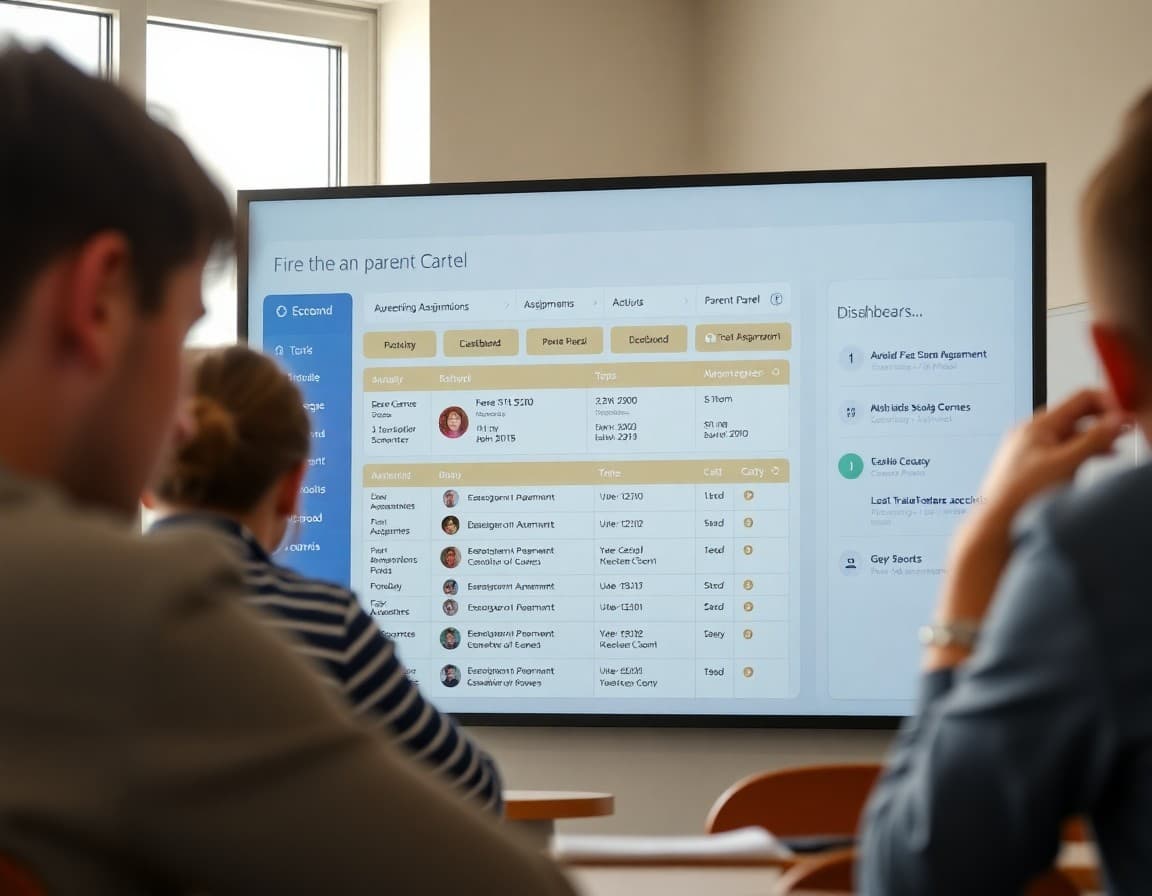
Every school with a parent portal has a significant portion of families who have never logged in. Some do not know it exists. Some tried once and gave up. Some do not have a device that works well with it. Your newsletter is how you reach all three groups and give them a reason to try.
What the Portal Actually Contains
Start by naming every useful thing families can find once they log in. Grades, attendance records, assignment details, teacher messages, progress reports, testing schedules, and emergency contact management are all examples. Many families who have not used the portal assume it is just a grade-checking tool. When they learn it contains everything from bell schedule changes to direct messaging with teachers, the value proposition is clearer and the motivation to set it up is higher.
How to Set Up an Account: Step by Step
Number every step. Start from the very beginning. Families who need these instructions are often starting from zero. Where do they go first? What URL or app do they use? What information do they need to create the account? How do they verify their identity as the parent of record? What do they do if their email is not recognized? Walk through every common stumbling block. Families who succeed in setting up an account will use the portal. Families who hit an error and have no guidance will not try again.
The Mobile App Option
If your parent portal has a mobile app, name it. Many families access school information primarily through a smartphone rather than a computer. An app that is available on both major platforms removes a significant access barrier for families who do not have consistent computer access. Include the app name and where to find it in the app store.
Who to Call for Help
A named contact is essential. Not a generic helpdesk. A specific person families can call who will answer the phone or call back the same day. The families who most need help with portal setup are often the least likely to email a ticketing system and wait. A phone number and a name make the barrier small enough for those families to cross.
Families Without Home Internet
Acknowledge the access question directly. If some of your families do not have reliable home internet or a compatible device, tell them what alternatives exist. School office computers during office hours, public library access, a district hotspot lending program, or printed progress reports on request are all options depending on your resources. The parent portal newsletter should not implicitly assume that all families have equal access. Naming the alternatives signals that the school is thinking about the families who are hardest to reach.
Setting Up Notifications
If the portal allows families to set up push notifications or email alerts for grade changes, attendance issues, or teacher messages, include instructions for that specifically. Families who receive automatic notifications are more engaged with their child's academic standing than families who have to remember to log in proactively. This feature alone can significantly change family engagement patterns when families know it exists.
Using Daystage for Portal Onboarding Communication
Daystage lets you build a structured parent portal newsletter with numbered setup steps, contact information, and multilingual sections. You can send it at the start of the year and schedule a follow-up two weeks later for families who have not engaged with the first communication. Consistent outreach about portal access is one of the highest-leverage things a school can do to improve family engagement with student data.
Get one newsletter idea every week.
Free. For teachers. No spam.
Frequently asked questions
What should a principal newsletter about the parent portal include?
Step-by-step setup instructions, what families can access once they are in, how to navigate the most common features, who to contact for help, and alternatives for families without home internet access.
How do you get more families to actually use the parent portal?
Tell them specifically what is in it that benefits their child. Grades and attendance are the obvious draws, but if the portal also contains assignment details, teacher messages, and progress reports, name each one. Families use tools they understand the value of. Families ignore platforms they cannot see the point of.
What barriers prevent families from using the parent portal?
Language barriers, low digital literacy, lack of device or internet access, and not having received setup instructions in the first place are the most common barriers. A principal newsletter that addresses each one specifically reaches families that a generic technology announcement never would.
How do you handle parent portal communication in multiple languages?
Send the setup instructions in the primary languages of your family community. If your portal system is not available in certain languages, acknowledge that and provide a translated summary of how to navigate it. A family that cannot read the instructions cannot follow them, regardless of how clear the portal itself is.
What tool helps principals send newsletters efficiently?
Daystage makes it easy to build a step-by-step portal setup newsletter with screenshots, support contacts, and multilingual sections. You can track which families have not opened the message and follow up with those who need additional outreach.

Adi Ackerman
Author
Adi Ackerman is a former classroom teacher and curriculum writer with 8 years in K-8 schools. She writes about school communication, parent engagement, and what actually works in real classrooms.
More for Principals
Ready to send your first newsletter?
3 newsletters free. No credit card. First one ready in under 5 minutes.
Get started free