

Parent Portal Tips Newsletter: Get the Most Out of Technology
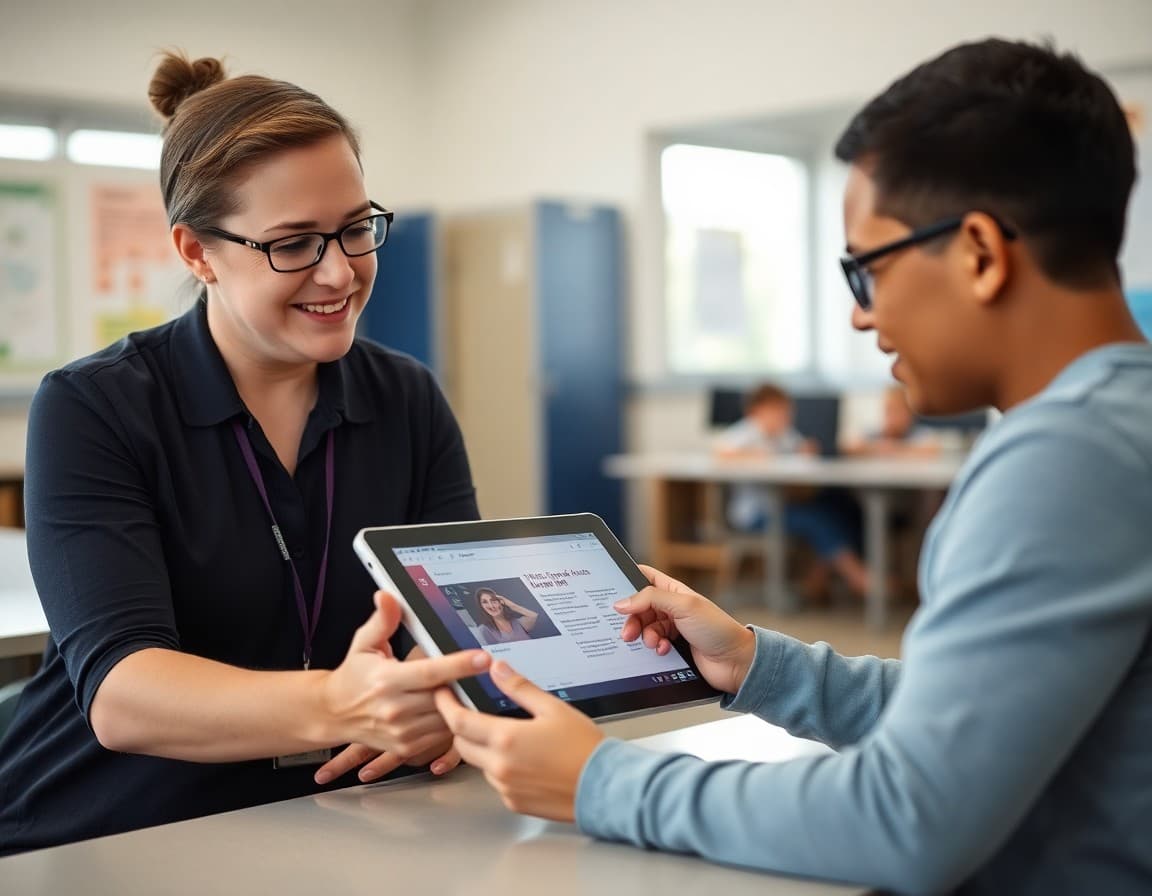
Most schools have invested in a parent portal system. Most schools are also seeing adoption rates far below what they expected. Parents set up accounts at the start of the year, get confused navigating the interface, and quietly stop checking. A parent portal tips newsletter, sent at the right moments across the year, significantly improves that picture by giving families the specific guidance they need to actually use the tool.
Why Parent Portals Fail to Reach Their Potential
Parent portals fail for predictable reasons. The initial setup email goes out at the start of the school year when families are overwhelmed with 15 other back-to-school communications. Families who miss it or get stuck feel embarrassed to ask for help. The interface is often not intuitive, and the documentation is typically a PDF manual that no one reads. By November, a large percentage of the school community has forgotten the portal exists or cannot remember their password and has not reset it.
A quarterly newsletter that treats the parent portal as a living tool, not a one-time setup, changes this pattern. A September newsletter covers initial setup. A November newsletter covers how to read the data before conferences. A January newsletter covers how to use the messaging feature effectively. A March newsletter covers how to track progress toward year-end goals. Each communication meets families at a relevant moment and keeps the tool active in their routine.
The Setup Newsletter: What to Cover
The initial setup newsletter should be a walkthrough, not just an announcement. Walk families through the exact steps: go to [URL], click "create account" or "activate account," enter [these fields], verify your email, then follow these steps to connect to your student's profile. Include a screenshot or link to a video walkthrough if your district has one. Specify the contact for tech support and make it easy to reach: a direct email address, not a generic "contact us" link.
Include the notification setup instructions in the same newsletter. Many parents do not know that automatic alerts for missing work or low grades exist, and the parents who most need that information, those who cannot check the portal regularly, are the ones least likely to discover it on their own. A sentence like "set up automatic alerts under Settings > Notifications so you are notified by text or email when an assignment is missing" takes 20 words and saves families hours of reactive stress later in the year.
A Template Section for the Pre-Conference Portal Newsletter
Here is a section ready to include in a November newsletter:
"Before You Come to Conferences: Three Things to Check in the Portal
Conferences are more useful when you have already looked at the data. Here is what to check before you sit down with your child's teacher:
1. Current grade versus grade history. The portal shows both. Current grade reflects recent work. Grade history shows the trajectory. If grades have been improving steadily, that is a positive story even if the current grade is not where you want it.
2. Missing or late assignments. These show up in the assignment log, usually marked with an M or L code. If there are more than one or two, that is worth discussing specifically.
3. Attendance record. Check for any absences or tardies that you may have forgotten about. Patterns in attendance often correlate with academic patterns and are worth bringing up if you notice them.
If you have not logged into the portal recently and cannot remember your password, click 'forgot password' at [URL] or email [contact] and we will get you sorted before conference week."
Explaining Grade Data Without Causing Anxiety
Many parent portals show grade data in ways that are easy to misinterpret. A 67 on a formative assignment early in a unit is very different from a 67 on a summative assessment. A grade that drops in October because of a missed assignment looks alarming but may be easily recoverable. Your newsletter can provide context: "The grade you see in the portal today reflects completed work so far. It can shift significantly as more assignments are completed and assessed. If you see a grade that concerns you, the best first step is to check the assignment list for missing or low-scoring items, then talk to your child about what they remember from those assignments."
Framing the portal as a tool for conversation rather than a verdict reduces the parent anxiety that leads to reactive emails and difficult conference interactions. A parent who understands what they are looking at is a more useful partner than one who is reacting to a number without context.
The Messaging Feature: How to Use It Well
Many parent portals include a teacher messaging function that most parents either never use or use in ways that create friction for teachers. Your newsletter can set expectations for what the portal message function is for: brief factual questions about assignments or events, requests to schedule a call or meeting, and sharing observations about a student's homework experience at home. It is not the right channel for lengthy concerns, emotional conversations, or complex questions that require a longer response.
A simple guide: if you can answer the question in two sentences, the portal message function works. If the question needs more back and forth, request a phone call instead. That guidance helps families use the tool in a way that teachers can respond to sustainably.
Keeping Portal Habits Alive Through the Year
Parent portal adoption drops significantly after the initial setup period. A brief mention of the portal in your regular newsletter every four to six weeks, tied to something relevant happening in that period, keeps the habit alive. "Report cards go out next week. If you want to see the detail behind the grades, log in to the portal now and check the assignment breakdown before the report card arrives." That kind of timely, relevant reminder is what converts initial setup into a lasting habit.
Get one newsletter idea every week.
Free. For teachers. No spam.
Frequently asked questions
What should schools cover in a parent portal setup newsletter?
Cover five things: how to create or claim an account, how to link to the student's profile, how to navigate to grades and assignments, how to set up email or text notifications, and who to contact if they have technical trouble. Include screenshots if possible or link to a video walkthrough. Many parents set up the portal with good intentions at the start of the year and then never return because they got confused during the initial setup and did not feel they could ask for help.
How often should parents check the parent portal?
Weekly is the recommended cadence for most families, with automatic notifications for missing assignments or grades below a certain threshold. Daily checking tends to produce anxiety about individual scores rather than big-picture academic understanding. Weekly checking, especially when paired with a brief conversation with the child about what they see, keeps parents informed without creating the micro-managing dynamic that harms the parent-child academic relationship. For students with IEPs or academic plans, more frequent checking may be appropriate.
What should parents do when they see a grade they are concerned about?
Start by talking to the child before contacting the teacher. Ask what happened, what they understood about the assignment, and whether they need help. In most cases, the conversation at home resolves the concern or gives the parent enough context to ask a useful question when they do contact the teacher. A parent who contacts a teacher saying 'my child told me they were confused about the essay prompt, and I'm wondering how to help them prepare for the next one' is far more likely to get a productive response than one who says 'my child got a C on the essay.'
What are the common parent portal features schools should explain in a newsletter?
Attendance records (absence codes, tardies, and what each code means), grade history versus current grade (many portals show both and parents sometimes confuse them), assignment-level grade breakdown (understanding which assignments are weighted more heavily), teacher messaging function (how to use it appropriately), and notification settings (how to opt into alerts for specific events like missing work). Each of these features serves a purpose, but they are only useful if parents know they exist and how to find them.
How can Daystage newsletters support parent portal adoption?
A brief quarterly parent portal tip included in a regular Daystage newsletter keeps the technology on families' radar without requiring a separate communication. Reminders like 'before report cards go out, make sure you have your portal notifications turned on' are more effective when they arrive in the weekly newsletter families are already reading. Daystage's link embedding makes it easy to include the portal login link directly in the newsletter so families can access it with one click.

Adi Ackerman
Author
Adi Ackerman is a former classroom teacher and curriculum writer with 8 years in K-8 schools. She writes about school communication, parent engagement, and what actually works in real classrooms.
More for Parent Engagement
Ready to send your first newsletter?
3 newsletters free. No credit card. First one ready in under 5 minutes.
Get started free