
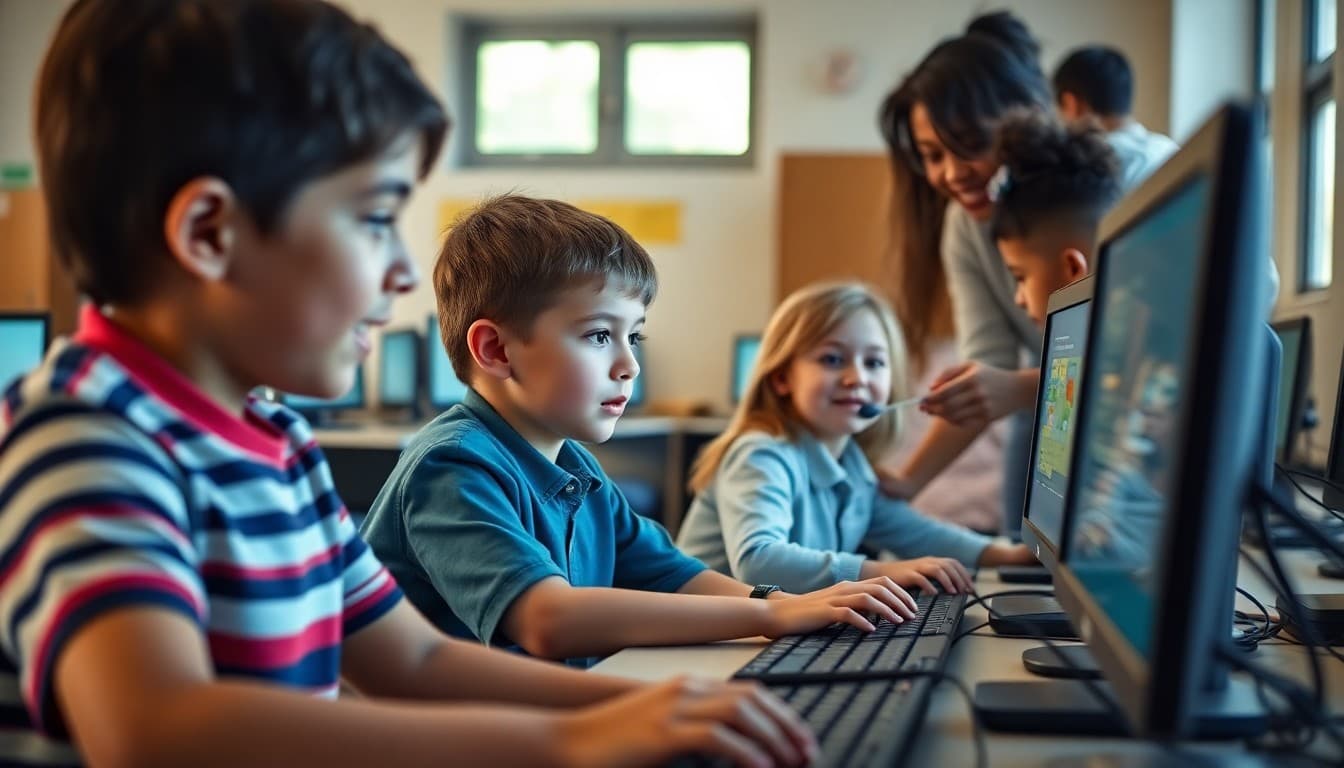
Elementary Computer Lab Newsletter: Tech Skills for Young Learners
Computer lab newsletters occupy a specific niche in elementary school communication. The content is technical, the skills are unfamiliar to many parents, and the concerns families have, including screen time, safety, and age-appropriateness, are more acute here than for any other subject area. A well-written computer lab newsletter addresses all of this without being defensive or dismissive. It tells parents what their child is learning, why it matters, and how to support it at home without needing a technology background to follow along.
Keyboarding: More Than Just Typing
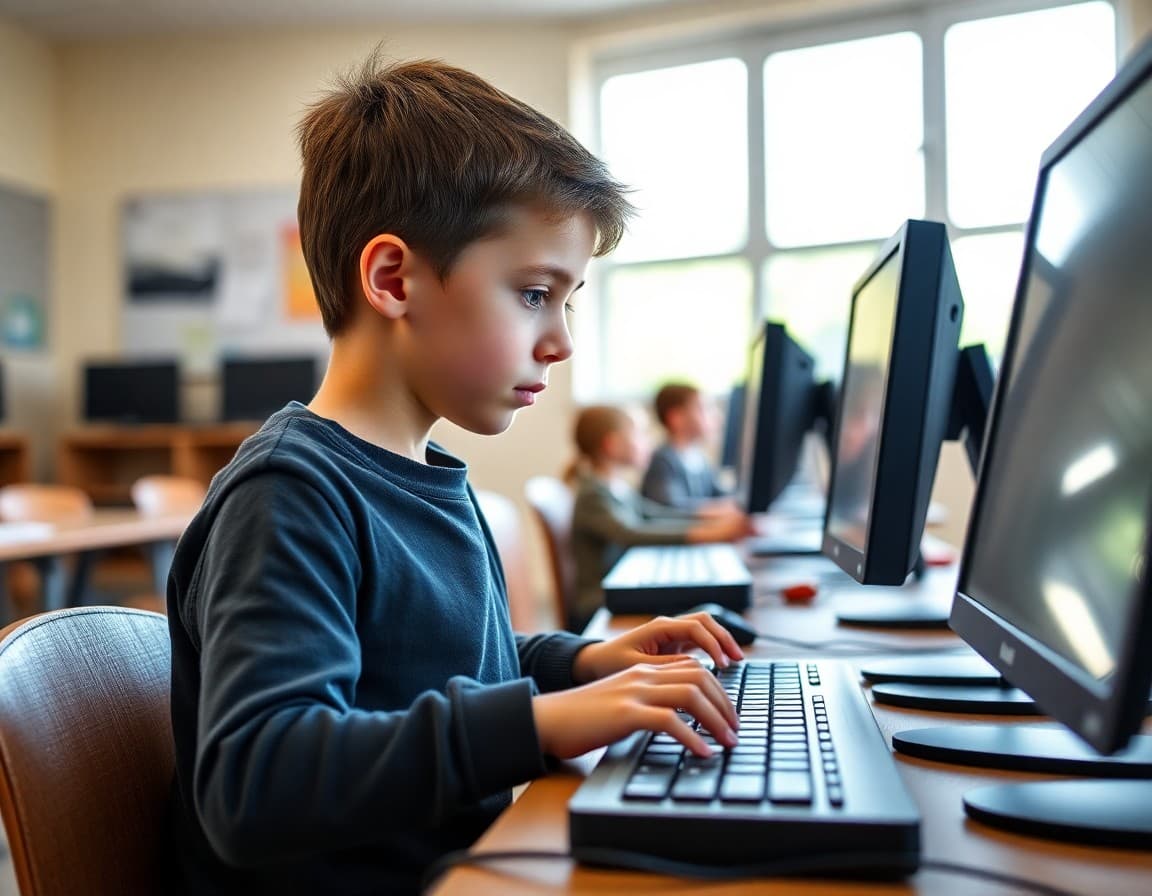
Typing instruction is a common topic in elementary computer lab newsletters and worth treating with specificity. Third graders who type 20 words per minute with correct technique have a measurable advantage in middle and high school when written output speed directly affects academic productivity. The goal in elementary is not speed but form: home row positioning, using all fingers, not looking at the keyboard. Tell families what words per minute their grade level is targeting by year end, and share the free practice tool you recommend. Families who practice typing with their child for 10 minutes three times a week see the progress clearly.
Internet Safety: What the Curriculum Covers
Internet safety is both a school responsibility and a shared responsibility with families. Explain exactly what your curriculum covers at each grade level so families can continue the conversation at home. Common Sense Media's K-5 digital citizenship curriculum is widely used and covers topics like personal information privacy, cyberbullying, evaluating online information, and screen time balance. If you use this curriculum, name it. Families who know the curriculum can reference it when their child comes home with a question or a story about something they saw online.
What Students Create in Computer Lab
Feature student digital work in your newsletter. A screenshot of a student's Scratch project, a photo of the class's collaborative Google Slides presentation, a sample of a digital story created in a writing app. Seeing what students create transforms computer lab from a mystery subject into a place where real learning is visible. It also gives students a sense of pride in their digital work that carries over into the effort they put into future projects. Newsletters without student work stay abstract. Newsletters with examples of student work are newsletters families remember.
A Sample Monthly Update Block
Computer Lab - November Update
Grade 4 students are completing their first coding projects in Scratch this month. Each student designed and programmed an interactive story where users can click to trigger character dialogue and movement. The project focuses on sequencing (putting instructions in the right order), loops (making things repeat), and conditional statements (if this, then that). Students will present their projects to the class on November 19. Ask your child to show you their project this weekend. They can access it at scratch.mit.edu with their school login.
Grade-Level Technology Expectations
Share the technology skills benchmarks for your grade level so families understand where their child should be by June. For second grade, a student should be able to: log into their school account independently, navigate to assigned websites, type a 3-sentence response in a document, and understand the school's rules about what to share online. For fifth grade, the benchmarks are higher: create a multi-slide presentation with sourced images, conduct a basic research task using two different sources, write a 2-paragraph document with appropriate formatting, and explain three rules of digital citizenship. Benchmarks give families context for what progress looks like.
Home Technology Safety Without Surveillance
Many parents want guidance on balancing safety and trust at home. Your newsletter is not the place to prescribe parenting approaches, but you can offer a framework. Suggest that families have devices in shared spaces during homework time for elementary-age students. Recommend having a periodic conversation about online experiences rather than only monitoring activity silently. Suggest the question "show me something interesting you found online this week" as an opening for conversation without interrogation. Families who feel equipped with good questions rather than surveillance tools tend to build healthier digital relationships with their children.
Get one newsletter idea every week.
Free. For teachers. No spam.
Frequently asked questions
What digital skills do elementary students learn in computer lab?
Elementary computer lab covers a range of skills across grade levels. Kindergarten and first grade focus on basic mouse control, keyboard awareness, and navigating simple programs. Second and third grade add typing skills, internet safety, and using educational software. Fourth and fifth grade introduce word processing, presentation tools, basic research skills, and often introductory coding concepts. The newsletter should describe exactly which of these skills students are working on rather than referring vaguely to technology class.
How do I explain digital citizenship to parents in a newsletter?
Define it specifically: digital citizenship is the responsible and safe use of technology, including managing personal information, recognizing safe and unsafe online interactions, understanding that digital actions have real consequences, and treating others respectfully online. Explain what your school teaches at each grade level. Give parents specific conversation starters: 'Ask your child what they would do if someone online asked for their home address.' These prompts make abstract lessons concrete.
How do I address families who are concerned about screen time?
Acknowledge the concern directly rather than dismissing it. Explain the distinction between passive screen time (watching videos) and active screen time (creating, coding, researching, communicating purposefully). Computer lab time is the active kind. It builds skills with direct academic and career application. Share the specific learning goals so families can see that computer lab is curriculum, not entertainment. Families who understand the difference are more comfortable with intentional technology use.
What free technology resources can I recommend to families in the newsletter?
Scratch (scratch.mit.edu) for coding, Code.org for structured computer science activities, Typing.com for free typing practice, Khan Academy for subject-area digital learning, and Common Sense Media (commonsense.org) for digital citizenship resources. These are all free, safe, and directly connected to skills students learn in school. Specific recommendations with URLs get clicked. General advice to 'explore educational technology at home' gets ignored.
Does Daystage work well for computer lab newsletters that include resource links?
Yes. Daystage makes it easy to include clickable links in newsletters, which is especially useful for technology-focused communication where you want families to visit specific websites. You can track which links get clicked so you know which home resources families are actually using. This helps you refine your recommendations over time to match what your specific community finds valuable.

Adi Ackerman
Author
Adi Ackerman is a former classroom teacher and curriculum writer with 8 years in K-8 schools. She writes about school communication, parent engagement, and what actually works in real classrooms.
More for Elementary
Ready to send your first newsletter?
3 newsletters free. No credit card. First one ready in under 5 minutes.
Get started free