
Screen Recording Newsletter: Tutorial Videos for Families

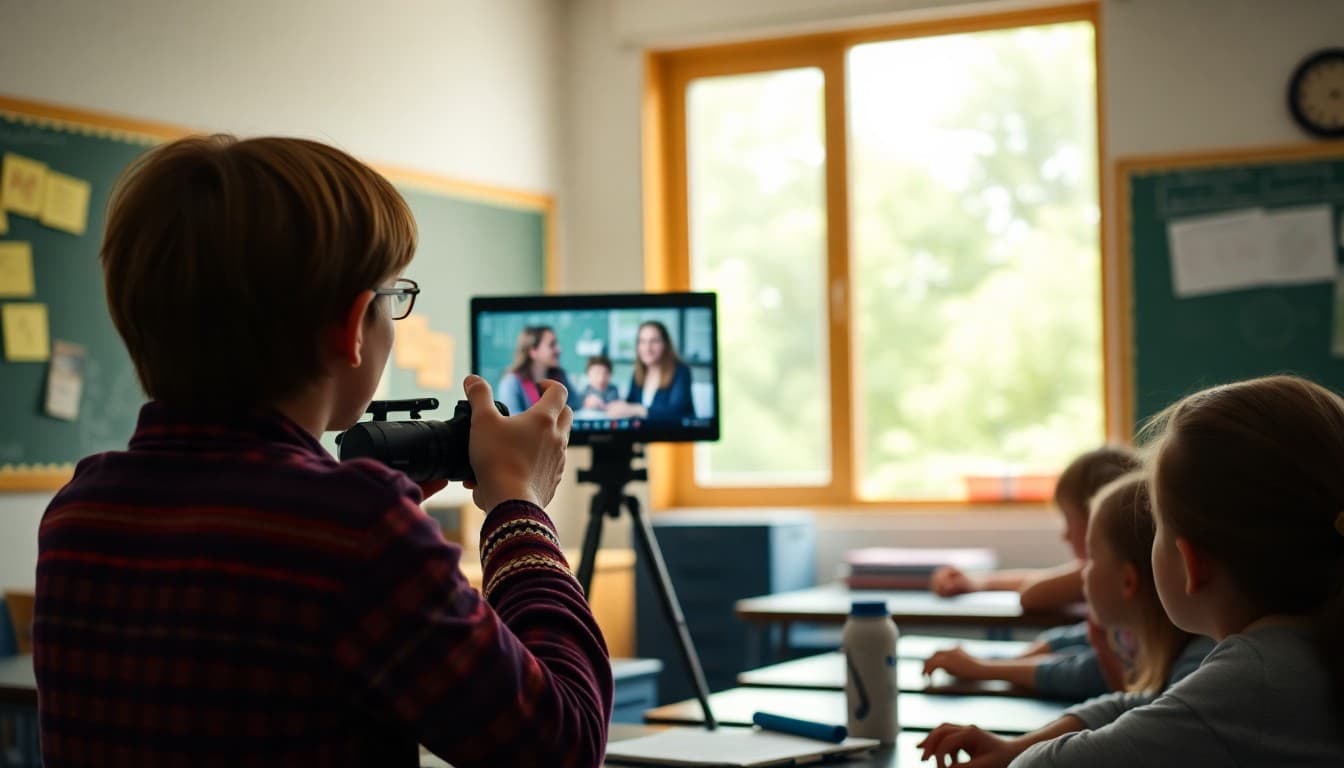
Screen recording videos are one of the most practical tools teachers have for supporting students and families outside of class. A four-minute walkthrough video of how to complete a specific type of math problem is more useful at 9 PM homework time than any other resource the school could provide. A newsletter that tells families these videos exist, where to find them, and how to use them can meaningfully reduce homework frustration in your school community.
Why Teachers Make Tutorial Videos
The traditional model of homework assumes students understood the lesson and can work independently at home. In practice, many students get home, open their assignment, and cannot remember the specific procedure the teacher demonstrated. Before screen recording tools existed, the only options were calling a friend, a parent attempting to recall methods they learned decades ago, or giving up. Teachers who create short tutorial videos solve this problem at scale. One 5-minute video demonstrating how to divide fractions can be watched by 200 students and their parents without requiring any additional teacher time outside of school hours.
How Teachers Create and Share Videos
Most school districts have standardized on one or two screen recording tools that teachers are trained on and that meet data privacy requirements. Screencastify is the most common in Google Workspace districts. It records the teacher's screen and voice simultaneously and saves directly to Google Drive. Loom is widely used for its simple recording and sharing interface. Apple-based schools often use the built-in QuickTime screen recording or iPad screen recording features. After recording, teachers typically share videos through Google Classroom by attaching them to the relevant assignment, or by posting them to a class YouTube channel or shared Drive folder. Your newsletter should describe exactly where your school's tutorial videos live so families can find them without a search.
What Types of Videos Are Most Useful
Not every classroom moment needs a screen recording. The most valuable tutorial videos fall into a few categories. Step-by-step procedural explanations for math and science problems that students will replicate for homework. Assignment walkthroughs that show students exactly what a finished product should look like before they begin. Technology tutorials that show students how to submit an assignment in the LMS, format a Google Doc properly, or use a new tool for the first time. Absent student catch-up videos that summarize what was taught in a lesson a student missed. These targeted recordings save significant teacher time on individual re-explanation while giving students exactly the resource they need.
How Families Can Use Tutorial Videos
The most effective use of tutorial videos is sitting with your child during homework and watching together when they are stuck. Pausing the video, trying the step, and then continuing is more effective than watching the whole video first and then attempting the work. Encourage families to check for a tutorial video before the first time they attempt to help their child with challenging homework. Teachers who create these videos often film them specifically because they know the content is hard and students will need support. The video is the teacher's way of being in the room at 9 PM without physically being there.
Sample Template Excerpt
Here is a section you can adapt for your own newsletter:
Homework Help Videos: How to Find Them
Many of our teachers create short tutorial videos for students who need extra support with homework. Here is how to find them.
For most classes: Go to Google Classroom, click on the relevant class, and look for the Materials section. Tutorial videos are labeled with the assignment or skill they cover.
For [specific teacher's] class: Videos are shared in a Google Drive folder. The link is pinned at the top of the Google Classroom stream.
If you cannot find a video for a specific concept, email your child's teacher. Many teachers are happy to record a quick explanation on request, especially if it is a concept multiple students are struggling with.
Student-Created Screen Recordings as Learning Tools
Teachers increasingly ask students to create screen recordings as a form of assessment. A student who records themselves explaining how they solved a math problem demonstrates understanding more clearly than a completed worksheet. A student who creates a narrated tour of a research project they built in Google Slides shows both content knowledge and presentation skills. These recordings are evaluated by teachers using rubrics that assess content accuracy, clarity of explanation, and technical execution. If your school uses student-created videos as assessments, your newsletter should explain how these are graded so families understand they are not casual projects but assessed work.
Privacy Considerations for School Videos
School-created tutorial videos that show only the teacher's screen and voice do not raise significant privacy concerns. Videos that show students' faces or voices, including student-created recordings or class session recordings, require more careful handling. Your school's data privacy policy should govern where student-facing videos are stored, who can access them, and how long they are retained. If families have questions about video recordings their child has appeared in, direct them to the principal or data privacy officer rather than handling it through the newsletter. The newsletter can acknowledge that privacy protocols exist without needing to detail every policy clause.
Get one newsletter idea every week.
Free. For teachers. No spam.
Frequently asked questions
Why do teachers create screen recording videos for students?
Screen recordings allow teachers to deliver instructional content that students and families can access on demand, outside of class time. A teacher who records a walkthrough of how to complete a specific type of problem gives students a resource they can pause, rewind, and replay as many times as needed. This is especially useful for homework help, students who were absent, students who process information at a slower pace, and families who want to understand what their child is learning without attending a school night event.
What tools do teachers use to create screen recording videos?
Common school-approved screen recording tools include Screencastify (a Chrome extension widely used in Google Workspace districts), Loom, Screencast-O-Matic, and Apple's built-in screen recording on Macs and iPads. Google and Microsoft also have built-in recording features in some of their education tools. The choice depends on what the district has approved and what integrates with the existing tech stack. Your newsletter should name the tool your teachers use so families know where to find the videos.
Where are school screen recording videos stored and how do families access them?
Videos are typically stored in Google Drive and shared via Google Classroom, in a school YouTube channel, or on the class page of the learning management system. Access usually requires a school Google account for private classroom videos or a direct link for publicly shared content. Your newsletter should explain specifically where to find tutorial videos for your school. Vague references to 'check the class page' leave families uncertain about where to look.
Can students create screen recordings for class assignments?
Yes, and this is increasingly common. Students use screen recording tools to create presentation walkthroughs, reading fluency recordings, science explanations, and portfolio reflections. Student-created recordings submitted as assignments are stored in the student's Google Drive or the class platform and reviewed by the teacher. If your school uses student screen recordings as assessment tools, your newsletter should explain what families can expect their child to produce and how it is evaluated.
How can Daystage help schools communicate about tutorial video resources?
Daystage makes it easy to embed links to tutorial video libraries in a formatted newsletter that reaches all families at once. When a teacher creates a particularly useful how-to video for a challenging unit, the technology coordinator or principal can use Daystage to share it school-wide. Schools that proactively send homework help resources via newsletter see higher family engagement with those resources than schools that leave them buried in the LMS for families to find on their own.

Adi Ackerman
Author
Adi Ackerman is a former classroom teacher and curriculum writer with 8 years in K-8 schools. She writes about school communication, parent engagement, and what actually works in real classrooms.
More for Technology
Ready to send your first newsletter?
3 newsletters free. No credit card. First one ready in under 5 minutes.
Get started free