
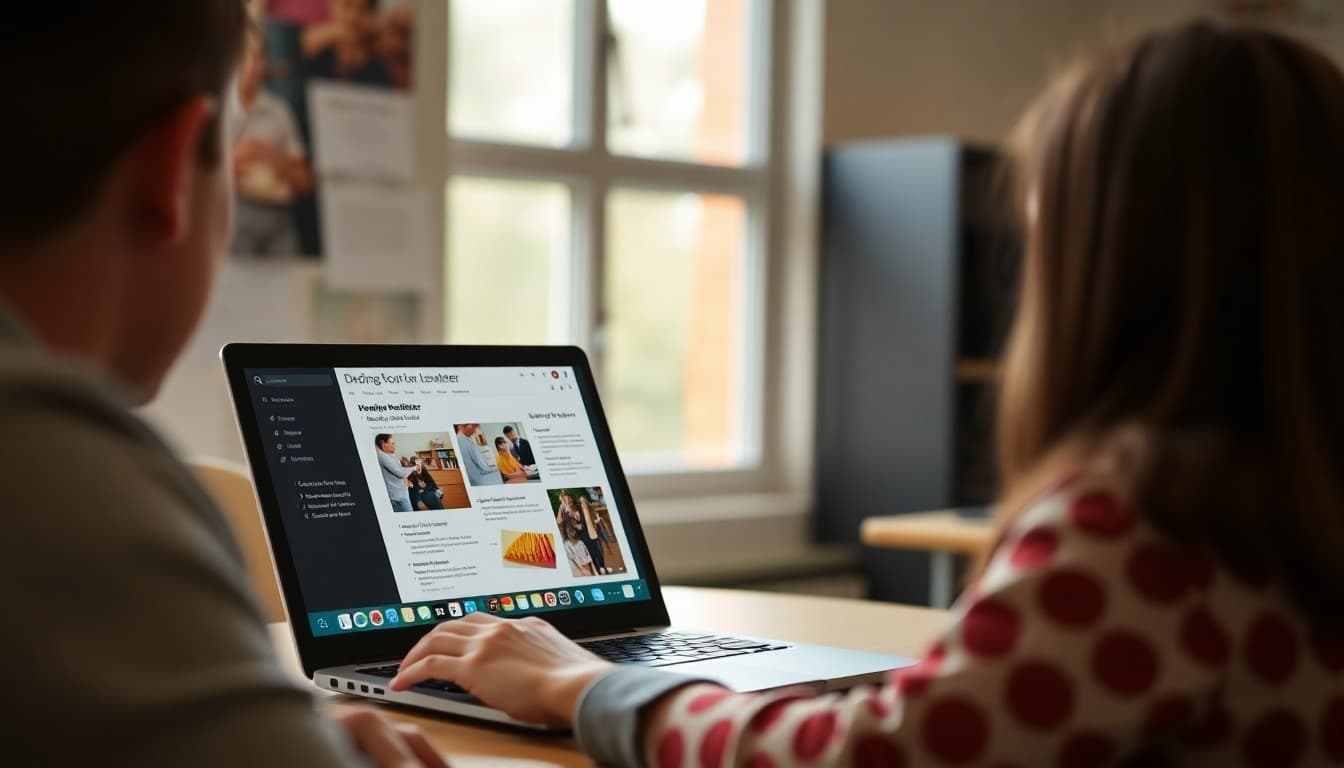
Using Google Slides for School Newsletters: Pros, Cons, and Better Options

Google Slides is the school newsletter tool that teachers reach for when they want visual design control and already live in Google Workspace. It is free, available on any school Chromebook, and familiar. It also has meaningful limitations that show up as soon as you try to use it the way a dedicated newsletter platform works. Understanding where Google Slides earns its place and where it falls short helps you decide when it is the right tool and when you need something different.
What Google Slides Does Well for Newsletters
Google Slides gives you complete visual control. You can place text boxes, images, shapes, and color blocks anywhere on the slide. You can match your school colors exactly. You can include photos at whatever size you want. If you have a clear design idea and the time to execute it, Google Slides lets you produce a newsletter that looks exactly the way you imagined. It is also collaborative: a team of teachers or a school communications committee can work on the same file simultaneously without emailing versions back and forth. For schools that want a consistent brand without paying for a design tool, Google Slides works.
The Mobile Problem
Google Slides defaults to a 16:9 widescreen format. School newsletters are read primarily on phones. A widescreen slide that requires horizontal scrolling to read is a bad experience for most families. If you use Google Slides for newsletters, change the slide dimensions to a portrait format before you start: go to File, Page Setup, Custom, and enter 8.5 by 11 inches. This single change dramatically improves the mobile reading experience. Even with a portrait layout, families who open a Slides link on their phone are viewing content in a browser window designed for a presentation tool, not for comfortable reading. The experience is workable but not optimized.
The Sharing and Access Problem
To share a Google Slides newsletter, you share a link or export a PDF. A link requires families to open a browser, load a Slides file, and read a presentation. Some families do not have Google accounts. Some school districts restrict external sharing. Some families' devices load Google Slides slowly. A PDF attachment avoids the account requirement but creates a large download that may not render well on older phones. Neither approach delivers the newsletter directly to the family in the format of an email they read in their inbox. That gap in delivery is the core limitation of Google Slides as a newsletter tool.
No Delivery or Engagement Tracking
When you send a Google Slides newsletter via email, you have no way to know whether families opened the link, how many clicked through, or whether the email was even received. Email clients that filter attachments or links may block your newsletter before families see it. Dedicated newsletter platforms send the content directly in the email, track opens, track clicks, and show you your delivery rate. If you want to know whether families are reading your newsletter, Google Slides does not give you that data.
When Google Slides Is the Right Choice
Google Slides works well for newsletters that are printed and sent home in folders rather than delivered digitally. If your school prints physical newsletters and you want a visual template that teachers can update each week, Google Slides is a practical tool. Export to PDF, print, done. It also works for one-off designed communications that do not require delivery tracking: a class yearbook page, a project showcase document, a visually designed curriculum overview. For regular digital delivery to family email inboxes with tracking, it is the wrong tool.
How to Transition From Google Slides to a Dedicated Tool
The most common reason teachers stay with Google Slides too long is familiarity and the time cost of learning something new. Dedicated newsletter platforms like Daystage are designed to require less design time, not more. You choose a template, add your content sections, and send. The design is handled by the template. What you gain is direct inbox delivery, mobile-optimized formatting, open rate tracking, and the ability to include forms, RSVPs, and event links that families can interact with inside the newsletter. The time you save on layout work more than covers the learning curve.
Keeping Google Slides Where It Belongs
The practical answer for most schools is to use Google Slides for what it does well, visual designed documents that will be printed or used as one-off communications, and use a dedicated platform for regular digital newsletters that go to family email. Google Slides is a presentation tool adapted for a newsletter use case. A dedicated newsletter tool is built for the actual job. Using the right tool for each task saves time and produces better results for families.
Get one newsletter idea every week.
Free. For teachers. No spam.
Frequently asked questions
Can you use Google Slides to make a school newsletter?
Yes, and many teachers do. Google Slides lets you create a visually designed newsletter layout, share it as a link, or export it as a PDF to attach to an email. The main advantages are that it is free, familiar to most school staff, and gives you visual design control. The main disadvantages are that it requires families to open a link or download a PDF rather than reading content in their email, it produces no delivery or open tracking, and it does not work well on mobile devices when used in landscape slide format.
How do you share a Google Slides newsletter with parents?
There are two common approaches. First, share a view-only link via email and ask families to open it. This requires families to have a Google account or access to an open-link share. Second, download the slides as a PDF and attach it to an email. The PDF approach is more reliable for families who do not have Google accounts but creates a large file attachment that may not display well on small phone screens.
What are the best Google Slides school newsletter templates?
The Google Slides template gallery includes some education-themed layouts. Canva also offers Google Slides-compatible templates with more design polish. Slidemania and SlidesCarnival offer free templates that work in Google Slides. Whatever template you choose, resize the slide to an 8.5 x 11 portrait ratio rather than the default 16:9 widescreen ratio before you start designing. Portrait layouts are much easier to read on mobile devices and print cleanly.
How do you track whether families read a Google Slides newsletter?
You cannot track open rates or read receipts through a standard Google Slides share link. Google Workspace admins can see file access logs at the account level, but individual teachers cannot see who has opened a shared link. If you need delivery tracking and open rate data, a dedicated newsletter platform gives you information that Google Slides cannot.
How does Daystage compare to Google Slides for school newsletters?
Daystage delivers newsletters directly to family email inboxes without requiring families to click a link or download a file. It tracks opens and clicks, works on any device without formatting issues, and supports forms and RSVPs embedded directly in the newsletter. For teachers who need to know whether families are actually reading the newsletter, not just receiving the link, Daystage provides data that Google Slides cannot.

Adi Ackerman
Author
Adi Ackerman is a former classroom teacher and curriculum writer with 8 years in K-8 schools. She writes about school communication, parent engagement, and what actually works in real classrooms.
More for Technology
Ready to send your first newsletter?
3 newsletters free. No credit card. First one ready in under 5 minutes.
Get started free