
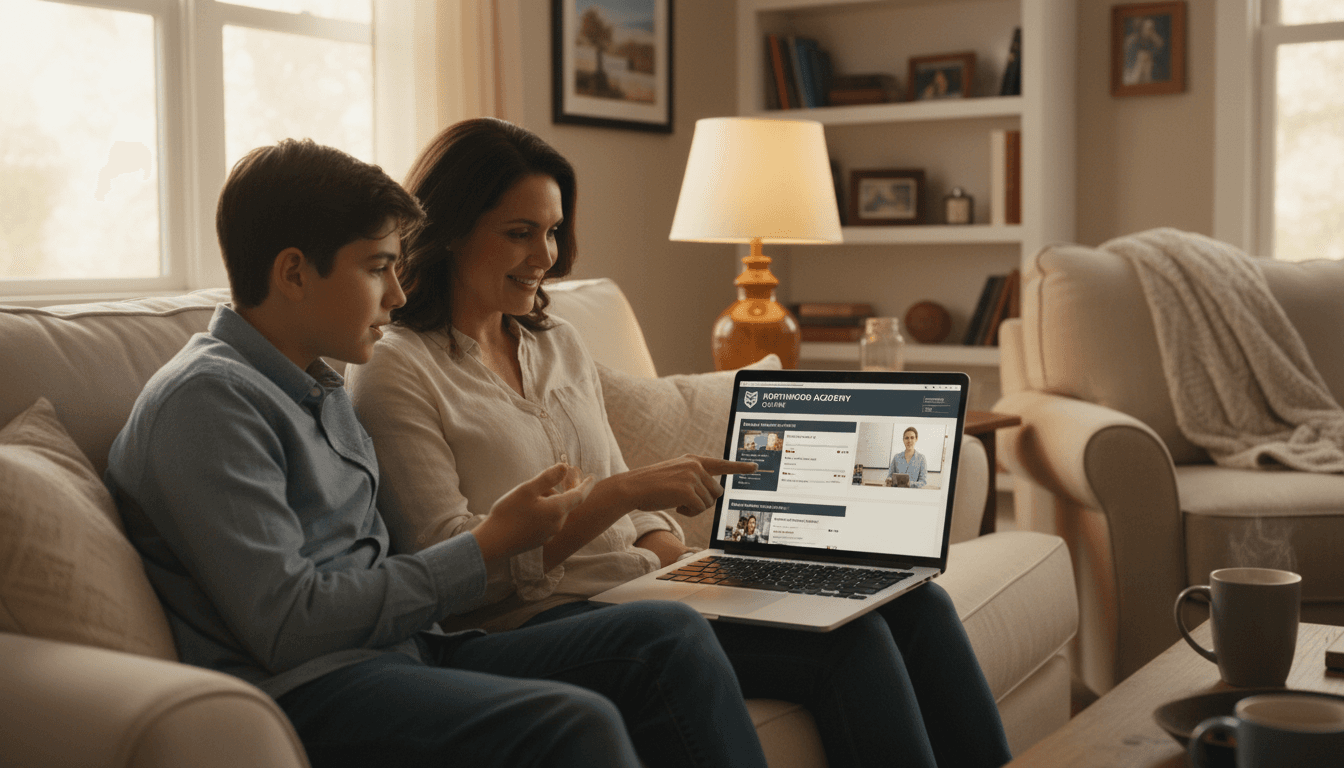
School LMS Newsletter: Communicating Canvas, Google Classroom, and Schoology to Families
A new learning management system is a significant operational change for students, teachers, and families. For teachers and students, the transition is supported by training sessions, tutorials, and daily classroom use. Families get a newsletter and a hope that they figure it out.
That gap is where parent frustration starts. Families who cannot access their child's assignments, who do not understand the grade view, or who miss notifications because they never set them up correctly become disengaged. This guide covers how to write an LMS newsletter that actually helps families get set up and stay connected throughout the year.
What a learning management system is, explained for parents
Do not assume families know what an LMS is. For many parents, the most recent school technology they interacted with was a paper grade report or a phone call from the office. A useful opening explanation sounds like: "Canvas [or Google Classroom, or Schoology] is the online platform where teachers post assignments, students submit their work, and grades are recorded. It is the single place your child's school-related digital work lives."
That one sentence gives families a mental model. Everything else you write in the newsletter builds on it.
How to access the platform: make this step zero
Before anything else, families need a URL and login instructions. The newsletter should include the direct web address, note whether there is a mobile app and where to download it, and explain how to log in. Student login is typically handled at school. Parent access requires a separate observer or parent account setup in most platforms.
Write the parent account setup steps in numbered order. Canvas calls this a Parent Observer account. Google Classroom uses Guardian Summaries. Schoology has a Parent account that links to the student. Name the account type specific to your platform. Families following instructions for the wrong account type will end up confused and call the school.
What parents can see versus what students see
This distinction matters and it is one families frequently misunderstand. In most LMS platforms, the parent observer view does not give parents the same interface the student sees. Parents typically see a summary of assignments, due dates, and grades. They do not see the internal discussion boards, peer feedback, or full assignment details in the same way a student does.
Be direct about this limitation. A parent who creates an observer account expecting to see exactly what their child sees will be frustrated when the view is different. Framing it accurately prevents that frustration: "Your parent observer account shows assignment due dates, submission status, and grades. For full assignment details and teacher feedback, ask your child to show you their student view."
Grade view versus assignment view
Some LMS platforms show an overall course grade. Others show only individual assignment scores. Some show both. Families need to know which they will see so they can interpret the data correctly.
If the gradebook is updated in real time as assignments are graded, say so. If there is a lag because teachers batch-grade, set that expectation. A parent who checks the gradebook on Saturday and sees an empty column for a test taken on Friday will worry unless they know the teacher typically posts grades by Monday. That one sentence in the newsletter prevents a weekend of unnecessary anxiety.
Notification settings: get families configured from day one
Most LMS platforms allow parent observers to set notification preferences: daily digest, instant notifications for specific events, or weekly summaries. Families who do not configure notifications will either miss everything or get notified about every minor event and start ignoring the platform.
Recommend a default notification setting in your newsletter. Something like "We suggest setting your notification preference to daily digest so you receive one summary email each evening with that day's updates" is more useful than leaving families to figure it out alone. Include a screenshot or a link to a short tutorial video if your district has one.
Troubleshooting access: the five most common problems
Include a brief troubleshooting section that covers the issues families most commonly encounter in the first two weeks of a new LMS:
- Cannot find the invitation email. Check spam and promotions folders. The invite comes from the platform domain, not the school domain.
- Invitation link expired. Contact the school office to request a new pairing code.
- Linked to the wrong student. Log out and re-enter the pairing code for the correct student.
- Cannot see any courses. The student must be enrolled in courses before they appear in the parent view. This may take a few days after the year starts.
- App is not syncing. Log out and log back in. Reinstall the app if the problem continues.
When the LMS changes or gets replaced
Districts sometimes switch platforms mid-year or between years. When that happens, the communication challenge is bigger than a launch newsletter because families already have a mental model of the old system. Your transition newsletter needs to explain what is changing and why, what will happen to records and grades from the old system, when the new system goes live, and how the new parent access setup works.
Tools like Daystage make it easy to create a dedicated LMS transition newsletter that stands on its own rather than being buried as a section in a longer school update. Families are far more likely to read and act on a newsletter with a clear subject and singular purpose.
Get one newsletter idea every week.
Free. For teachers. No spam.
Frequently asked questions
When should schools send an LMS newsletter to families?
Send the LMS onboarding newsletter at least one week before parent observer accounts are activated, so families have time to set up access before the school year is in full swing. A same-day activation with instructions attached is not enough time for families to troubleshoot login issues before they need to see their child's first assignment.
What should a school LMS newsletter include?
Start with a plain one-sentence explanation of what the LMS is. Then walk through parent account setup in numbered steps using the exact account type name for your platform, Canvas Parent Observer or Google Guardian Summaries, not a generic description. Include what parents can see versus what students see, recommended notification settings, and the five most common access problems with solutions.
How should schools explain the parent observer view limitations to families?
Be direct: the parent observer view is a summary, not the full student interface. Parents see assignment due dates, submission status, and grades. For full assignment details and teacher feedback, families need to ask their child to show them the student view. Setting this expectation in the newsletter prevents the frustration of families who set up access expecting to see everything their child sees.
What are common communication failures when schools launch a new LMS?
The most preventable failure is not setting gradebook update timing expectations, which leads to family concern when they check on a weekend and see empty columns for assessments taken that week. A second common gap is using the generic account type name instead of the platform-specific one, which means families follow instructions for the wrong setup flow and end up calling the office.
How does Daystage work alongside an LMS for school communication?
An LMS handles assignments and grades. Daystage handles newsletter communication, which is a different function. Schools using both can send a dedicated LMS transition or onboarding newsletter through Daystage with a clear subject and singular purpose, rather than burying setup instructions in a longer general school update where they tend to get skipped.

Adi Ackerman
Author
Adi Ackerman is a former classroom teacher and curriculum writer with 8 years in K-8 schools. She writes about school communication, parent engagement, and what actually works in real classrooms.
More for Technology
Ready to send your first newsletter?
3 newsletters free. No credit card. First one ready in under 5 minutes.
Get started free