iPad School Newsletter: Care and Learning Guide for Families

iPad programs are most common in elementary schools, where touchscreen interfaces lower the barrier to digital learning for younger students. But most elementary families have never managed a school-issued device before. A clear, friendly iPad newsletter at the start of the year sets the tone, answers the questions families are already asking, and reduces the support burden on your technology office. This guide covers everything that newsletter should include.
Why Schools Choose iPads for Younger Learners
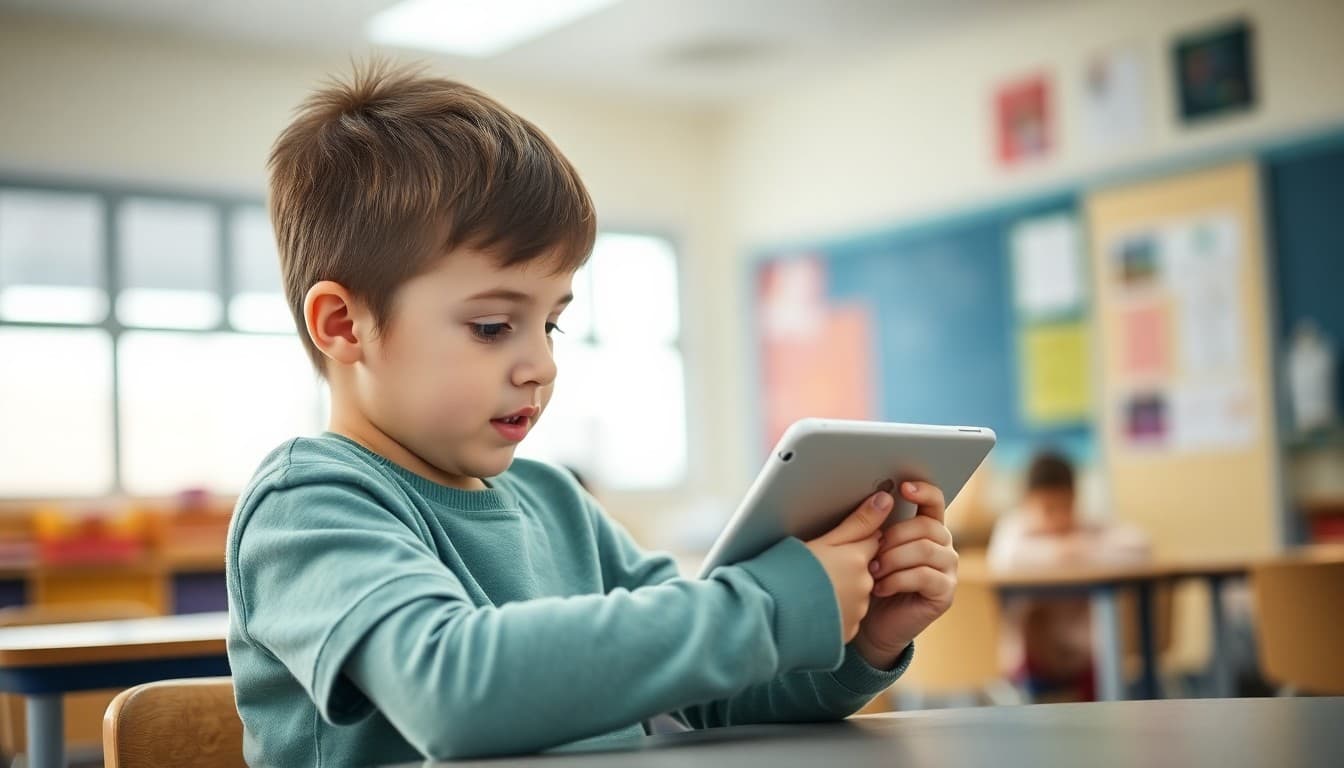
iPads are the dominant device in K-2 and K-5 programs for a reason. The touchscreen interface requires less fine motor coordination than a keyboard and mouse, making it more accessible for kindergartners and first graders. The app ecosystem includes some of the best early literacy and math tools available, including platforms like Seesaw, Reading Eggs, and IXL that adapt to individual student skill levels. The camera and microphone also make iPads powerful tools for creative projects: recorded reading fluency assessments, digital storytelling, and photo-based science journals. Sharing this context helps families see the iPad as a purposeful learning tool rather than a recreational device with school apps on it.
Care Guidelines for Elementary-Age Students
Elementary students need clearer, simpler care instructions than older students. Frame them as rules the student is responsible for, not just the family. The iPad stays in its case, always. It charges on the kitchen counter every night. It never goes outside unless packed safely in the school bag. It never gets dunked in anything, not even by accident. If something happens to the iPad, tell a parent and then the teacher immediately. Schools that involve students directly in the care expectations, not just parents, see better compliance because students feel a personal responsibility for the device.
Apple School Manager and Managed Apps
School iPads are enrolled in Apple School Manager, which gives the technology team centralized control over every device. This means apps are pushed to devices automatically rather than requiring families to download them from the App Store. It means the home screen layout may be locked. It means the student's personal Apple ID, if they have one, cannot be used to add unauthorized apps. Families sometimes find this restrictive, especially parents who want to add educational apps their child uses at home. Your newsletter should acknowledge this and explain the process for requesting an app be added through the school's approved list.
Screen Time and Restrictions
Many school iPad programs use Apple's built-in Screen Time features to set content restrictions appropriate for the age group. This might mean limiting Safari browsing to approved sites, preventing in-app purchases even in free apps, or restricting certain content ratings. Families should know these restrictions are in place and why. Some parents appreciate knowing the device has guardrails. Others want to understand exactly what their child can and cannot access. Being transparent about restrictions builds trust and reduces the sense that the school is controlling family technology without explanation.
Sample Template Excerpt
Here is a section you can adapt for your own newsletter:
Your Child's iPad: A Family Guide
Your child is bringing home a school iPad this year. Here is what you need to know to get off to a good start.
The case is not optional. Our cases have kept screen damage rates below 5 percent for three years running. The moment a student removes the case is usually the moment the screen breaks.
Charge it every night at the same spot. Some families use a small basket or charging station on the kitchen counter. Whatever works for your household, make it a consistent routine.
The apps on the device are chosen by your child's teacher. If your child asks you to download a new app, please check with us first. We can often add approved educational apps quickly once they are vetted.
When a Student Has Their Own iPad at Home
A common question is whether a student can use their personal iPad instead of the school-issued one. The answer is usually no for in-school use, because the school iPad has specific management profiles, apps, and configurations that a personal device cannot replicate. For homework, families may have more flexibility, but students should use their school Google or Apple account rather than a personal account to ensure work is saved in the right place. Address this scenario explicitly so families who own personal iPads know what to do.
Handling Technical Problems
Teach families three basic troubleshooting steps before they call the technology office. First, restart the iPad by holding the power button and using the slide-to-power-off option. Second, check that the iPad is connected to WiFi and that the WiFi network is working. Third, check whether the specific app is updated. Most common issues resolve with one of these steps. For anything more serious, the student should bring the iPad to school and the teacher or technology coordinator will assess it. Families should not attempt to restore or reset the device themselves, as this can wipe the school's management profile.
Summer and End-of-Year Device Procedures
If your district allows students to take iPads home over summer, include the specific return date and any checklist families should complete before the return. If devices stay at school over summer, give families a specific date and process for returning home devices. Devices that are not returned on time create an administrative headache and, in some districts, result in fees for families. A clear end-of-year timeline sent in May or June prevents most of the confusion that accumulates at the end of the school year.
Get one newsletter idea every week.
Free. For teachers. No spam.
Frequently asked questions
How should families care for a school-issued iPad?
Keep it in the school-provided case at all times when not in active use. Do not remove the case to use a personal case, as the school case is specifically chosen for protection. Keep the screen clean with a soft, dry cloth, not household cleaning products, which can damage the oleophobic coating. Charge overnight using only the provided cable and adapter. Do not leave the iPad in a vehicle, as extreme temperatures can permanently damage the battery. Most iPad damage in school programs comes from drops during transitions.
Can families install personal apps on a school iPad?
Typically no. School iPads are managed through Apple School Manager and a Mobile Device Management system. Only apps approved by the school's IT department can be installed. Families cannot install personal apps, games, or streaming services on a school-managed iPad without IT approval. This policy protects both the school's configuration and the student's privacy. If a student needs a specific app for learning, the teacher or technology coordinator can request it through the proper channel.
What is Apple School Manager and why does it matter?
Apple School Manager is the platform schools use to manage all iPads from a central console. It controls which apps are available, enforces screen time restrictions if the school sets them, deploys updates automatically, and allows the IT team to remotely wipe a lost or stolen device. Families do not need to interact with it directly, but understanding it exists helps explain why the iPad behaves differently from a personal device.
What should students not do with a school iPad?
Students should not share their iPad login credentials with anyone, attempt to bypass management restrictions, use the iPad to record or photograph other people without their knowledge, access accounts that are not their school accounts, or take the iPad outside of school without teacher or parent permission. These rules exist in the acceptable use policy, but distilling them into a newsletter makes them more accessible to families who will not read a multi-page policy document.
Can Daystage make iPad program communication easier for schools?
Daystage makes it easy to send a formatted iPad orientation newsletter with care images and policy links at the start of the school year. You can schedule follow-up newsletters for key moments like after spring break, when damage rates tend to spike, or before summer device checkout if your program allows it. The platform's open-rate tracking tells you which families actually read the newsletter, so the technology coordinator knows where to follow up directly.

Adi Ackerman
Author
Adi Ackerman is a former classroom teacher and curriculum writer with 8 years in K-8 schools. She writes about school communication, parent engagement, and what actually works in real classrooms.
More for Technology
Ready to send your first newsletter?
3 newsletters free. No credit card. First one ready in under 5 minutes.
Get started free