
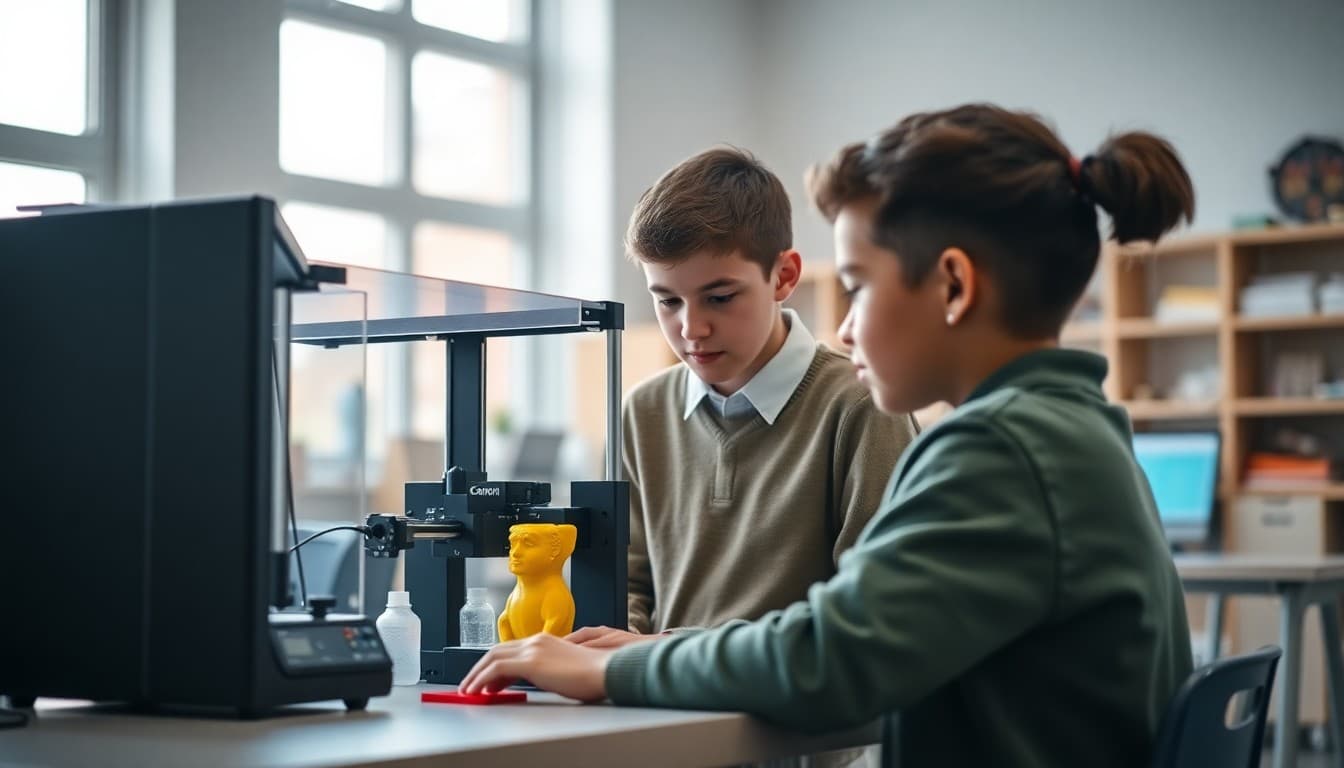
3D Printing School Newsletter: Design and Innovation Updates

A 3D printing newsletter is doing something most school communications do not have to do: explain a physical manufacturing process to families who have probably never used a CAD tool. Do that job well and families will understand why this program matters.
Start with what the program actually teaches
The machines are interesting, but families need to understand the skills, not the equipment. Your first newsletter should name the specific competencies students are building: computer-aided design, iterative prototyping, measurement and tolerance, material science basics, and professional engineering workflows.
"Students in this class are not just pressing a button and watching things print. They spend 80% of their time in design, problem-solving, and iteration. The printer is the last step, not the main event." That sentence reframes the program for families who picture students passively watching a machine.
Explain how the design-to-print process works
Walk families through the full workflow once early in the year. Students identify a design challenge, sketch a solution by hand, build it in CAD software, check dimensions in a digital simulation, export a print file, configure the printer settings, monitor the print, evaluate the result, and revise if needed.
That sequence typically takes four to six class periods for a single project. Framing it that way helps families understand why the timeline seems long compared to what they might picture as "just printing something."
Describe the current project in specific detail
Every newsletter update should describe what students are working on with enough specificity that a family could ask their child a real question about it. "Students are designing" tells families nothing. "Students are designing a custom bracket that holds a tablet at exactly the right angle for reading in bed, and they had to calculate the weight load the bracket would need to support before choosing the wall thickness" gives families something to work with.
Show before-and-after design iterations
One of the most compelling things a 3D printing newsletter can share is the progression from first print to final print. If you photograph each version of a project, a newsletter showing three versions of the same object alongside what changed and why is a powerful demonstration of engineering thinking.
"Version 1 collapsed under a light load because the base was too thin. Version 2 held the load but cracked at the joint. Version 3 added a triangular brace at the joint and now holds 3 kilograms without deformation. That is the engineering design process working exactly as it should."
Sample newsletter template excerpt
This week, students completed their first full design-to-print cycle. Each student chose a real problem in their daily life and designed a printed solution. Alex designed a custom key organizer that holds four keys flat in a pocket without jingling. Fatima designed a pill organizer with compartments sized to her grandmother's specific medication bottles. Both students had to revise their CAD files at least twice before the final print matched their design intent.
All finished prints are on display in the STEM hallway this week. We encourage you to stop by before or after school to see the full class collection.
Address materials, safety, and maintenance briefly
Families sometimes have questions about the materials students are handling. Most school 3D printers use PLA filament, a plant-based plastic that is safe at typical print temperatures. The extruder tip reaches around 200 degrees Celsius, so students learn proper safety protocols before touching any printer components.
A quick note in your first newsletter covering material safety and supervision practices answers those questions before families think to ask them, which builds trust in the program.
Connect the work to real career applications
CAD and 3D fabrication skills are in demand across product design, aerospace engineering, medical device manufacturing, architecture, and consumer goods. Students who learn these tools in school have a genuine head start.
Name specific industries and roles when they connect to what students are doing. "The design constraints students worked with this week, where a product must fit a human hand in a specific way, are exactly the constraints that ergonomic product designers face professionally. Companies like Herman Miller and Apple hire for this skill set."
Invite feedback and celebrate results
Families respond well when newsletters close with a specific invitation. Ask them to let you know if their child talks about a project at home, or share a photo of a printed object being used in a real context. "If your child's printed project is being used at home, we would love to know. Send us a photo and we will share it in next month's newsletter as part of our 'Designs in the Wild' section."
Get one newsletter idea every week.
Free. For teachers. No spam.
Frequently asked questions
What software do students use to design 3D models for printing?
Most K-12 3D printing programs use Tinkercad, a free browser-based CAD tool made by Autodesk that requires no installation and works on any school device. Older or more advanced students may use Fusion 360, also free for students, or Onshape, a browser-based professional CAD tool. Some programs use Blender for artistic and sculptural objects. The choice depends on student age, project complexity, and available hardware. Tinkercad is the standard starting point for grades 5 through 9.
How long do 3D prints typically take in a school setting?
Print times vary widely based on object size, infill density, and printer speed settings. A small keychain or test piece might print in 15 to 20 minutes. A medium-sized project like a phone stand or architectural model typically takes 1 to 3 hours. Large structural pieces or detailed sculptures can take 6 to 12 hours or more. Most school teachers queue overnight prints for large objects and manage multiple prints across the school day using smaller objects during class time.
What do students do when a print fails?
Print failures are learning opportunities. Students examine the failed print and print settings to diagnose the cause: adhesion failure, warping, under-extrusion, incorrect scale, or structural weakness. They document what happened in their engineering journal, adjust the design or settings, and reprint. This troubleshooting process mirrors the quality control work that manufacturing engineers do professionally. Families should know that a failed print is not a wasted class period.
How does 3D printing connect to other subjects?
History classes use 3D printing to recreate artifacts from ancient civilizations. Art classes use it for sculptural and wearable projects. Biology classes print cell models and anatomical structures. Math classes produce geometric solids that students can measure and analyze. Geography classes print topographic maps. The technology is most powerful when it makes abstract content tangible, and newsletters that highlight these cross-curricular connections show families the full academic value of the program.
How does Daystage help teachers share 3D printing progress with families?
Daystage lets teachers attach photos of student designs and finished prints directly in the newsletter, so families see the actual objects their children created rather than a text description. When a parent receives a newsletter photo showing their child's printed prototype alongside a description of the design choices that went into it, the learning becomes visible and the conversation at home becomes more specific.

Adi Ackerman
Author
Adi Ackerman is a former classroom teacher and curriculum writer with 8 years in K-8 schools. She writes about school communication, parent engagement, and what actually works in real classrooms.
More for STEM
Ready to send your first newsletter?
3 newsletters free. No credit card. First one ready in under 5 minutes.
Get started free