
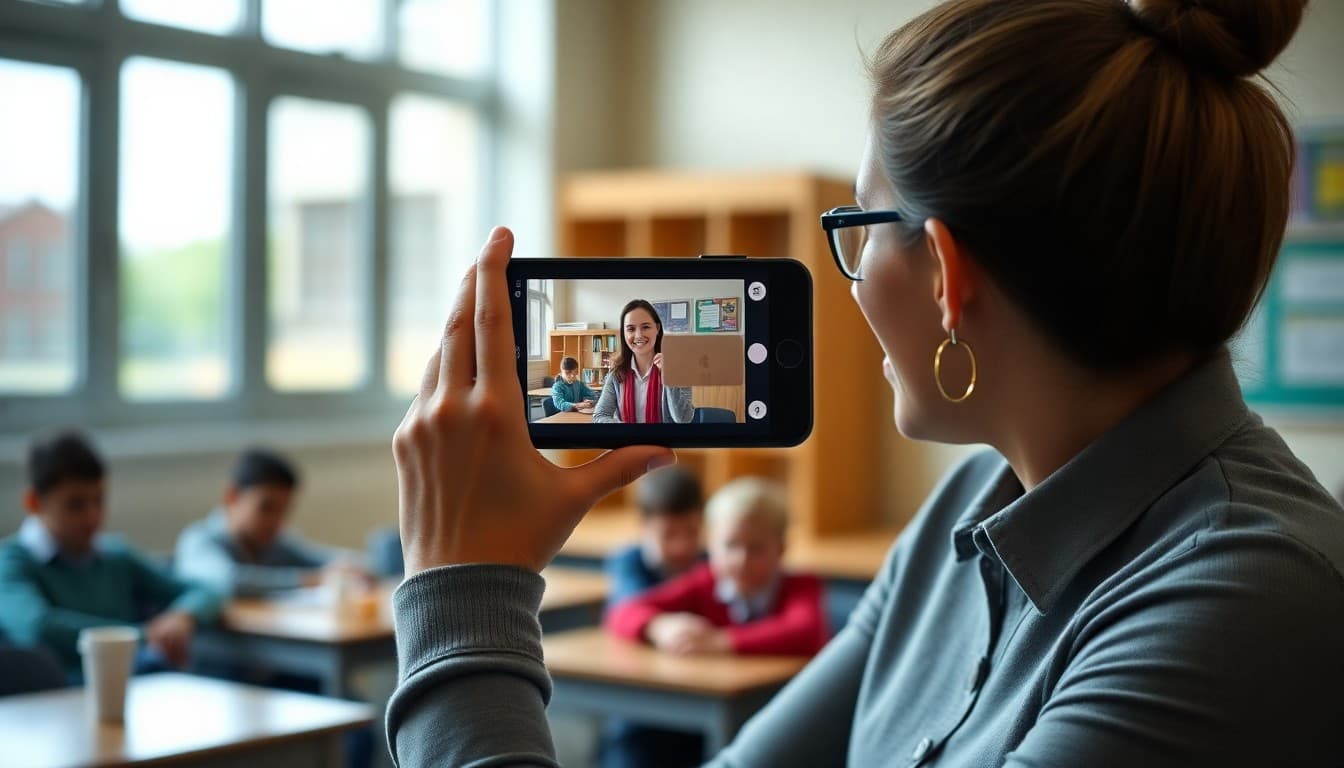
How to Add Video Content to Your School Newsletter
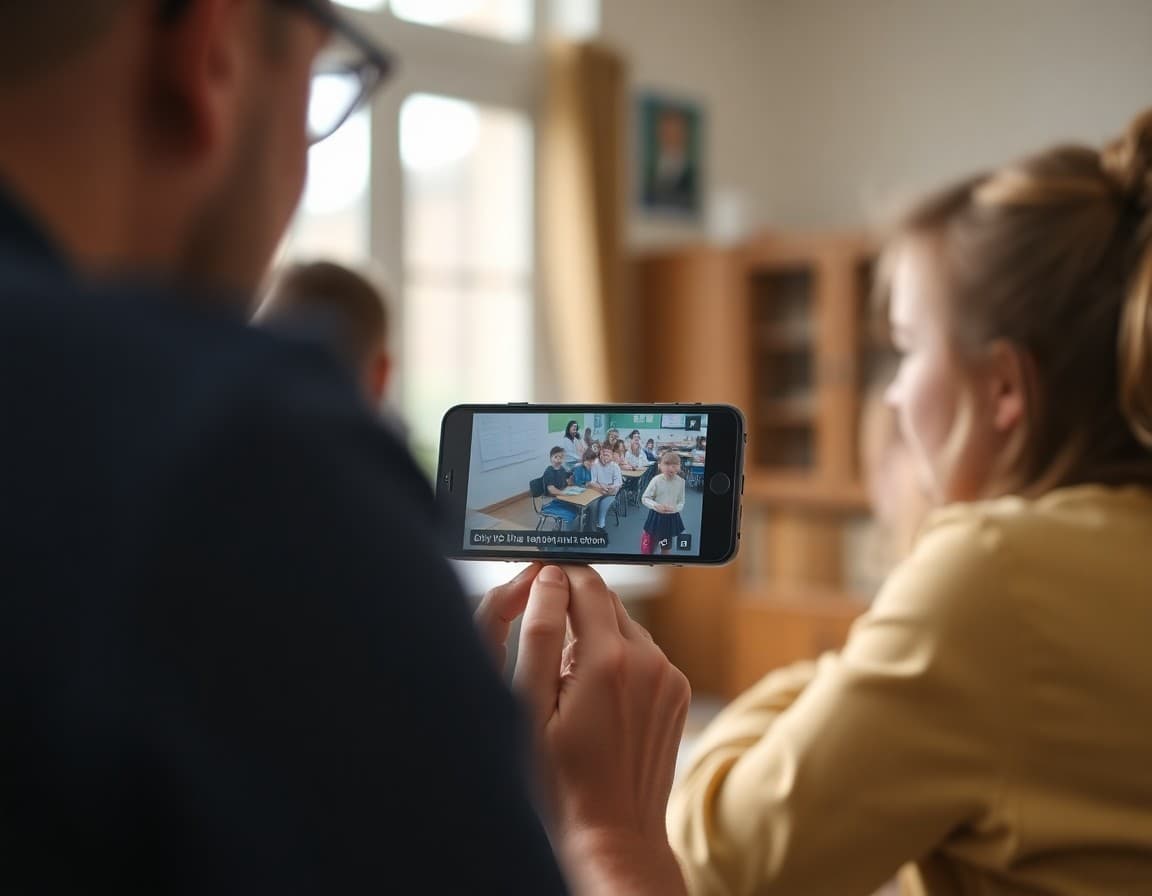
Video in school newsletters is one of the highest-engagement content formats available, but most schools either avoid it because they think it is technically complicated or use it incorrectly and wonder why families do not engage. Here is what actually works.
The Technical Reality: Video Does Not Play in Email
This is the most important thing to understand before adding any video to your newsletter. Most major email clients, including Gmail, Outlook, and Apple Mail, do not support video that plays directly inside an email message. An HTML5 video tag embedded in an email will either display as a broken element, a blank space, or a still image depending on the client. If you see advice telling you to embed video directly in email, it is outdated or incorrect.
The reliable approach: include a video thumbnail image with a play button overlay, linked to the video hosted on YouTube or another platform. Families see the thumbnail, recognize the play button, click through to watch. This works in every email client because it is just an image with a link.
What Video Content Families Actually Watch
Not all video performs equally in school communications. Videos that consistently drive clicks and views: a short message directly from the principal or a classroom teacher (60 to 90 seconds), a video of students sharing their work or demonstrating a project, a highlight reel from a school event with music (under two minutes), or a student-produced video that shows something happening at school that families would not otherwise see.
What performs poorly: professionally produced promotional videos that feel like advertisements, recordings of full assemblies or ceremonies (families who attended do not need to rewatch; families who did not can often catch the highlights in 30 seconds), and any video that requires watching all the way through to get the key information.
How to Create a Video Thumbnail With a Play Button
The process is simple and does not require design expertise. Step one: upload your video to YouTube as an unlisted video. Step two: take a screenshot of a visually engaging frame, a student's face, a moment of activity, or a clear image of what the video contains. Step three: open Canva (free), create a new image at 600x400 pixels, upload your screenshot, and overlay a play button icon from Canva's element library. Step four: export as a JPEG or PNG. Step five: upload to your newsletter as an image block and link the entire image to the YouTube URL.
Video Length and Completion Rates
Online video completion rates drop sharply after 90 seconds. A one-minute video from the principal will be watched by the vast majority of families who click. A five-minute video will be watched by a small fraction. This is not a reflection of family engagement; it is a universal pattern for online video consumption.
If you have more than two minutes of content, break it into separate shorter clips rather than publishing one long video. Three one-minute videos get more total minutes watched than one three-minute video.
Template for a Video Section in a School Newsletter
Here is how to write the text surrounding a video thumbnail in your newsletter:
"[Video thumbnail image with play button, linked to YouTube URL] [Caption] This week, Principal Martinez shares a 60-second note about what is happening in our school this month and what families can expect next week. Click the image to watch. [Below the thumbnail] For families who prefer to read: [two to three sentence text summary of what the principal covers in the video]."
Always include a text summary for families who cannot or prefer not to watch video. This is good accessibility practice and ensures the information reaches families regardless of their video preferences.
Privacy and Consent for Student Videos
Videos that identify individual students require the same media consent as photos, plus consideration of whether the video will be hosted publicly or only accessible via link. Unlisted YouTube videos are accessible to anyone with the link but do not appear in search results, which is a reasonable middle ground for classroom videos. Public YouTube videos are accessible to anyone anywhere and should be treated with the same care as fully public communications.
Building a Sustainable Video Habit
The biggest barrier to video in school newsletters is not technical; it is the perception that video requires significant production effort. A 60-second iPhone video recorded in a classroom, uploaded directly to YouTube, takes about five minutes from recording to embedded thumbnail in the newsletter. Start there. One quick, personal video per month builds the habit and consistently drives the highest engagement of any content type in the newsletter.
Get one newsletter idea every week.
Free. For teachers. No spam.
Frequently asked questions
Can you embed videos directly in a school email newsletter?
Most email clients, including Gmail and Outlook, do not support embedded video that plays directly in the email. Attempting to embed video that autoplay in email often results in broken content or a blank space. The reliable approach is to include a thumbnail image of the video in the newsletter with a clickable link that takes families to the video hosted on YouTube, Vimeo, or another platform.
What types of videos work well in school newsletters?
Short videos under three minutes perform best. High-performing types: a 60-second message from the principal about something happening at school, a two-minute video of students presenting a project or demonstrating a skill, a timelapse of a school event or garden growing, or a student reading aloud their own work. These feel personal and specific to the school, which is why families watch them when they would skip a generic video.
How do you create a clickable video thumbnail for a school newsletter?
Upload the video to YouTube or Vimeo. Take a screenshot or export a frame from the video that shows something engaging, like a student's face or an action moment. Overlay a play button icon on the image using Canva or any basic image editor. Upload that composite image to your newsletter and link it to the video URL. Families who see the play button intuitively understand they need to click to watch.
What video hosting platforms work best for school newsletter links?
YouTube is the most widely accessible and familiar platform for families. Unlisted YouTube videos are accessible via link but do not appear in search results, which is appropriate for school videos. Vimeo offers cleaner player design and better privacy controls but requires a paid account for school-volume uploading. Some schools use their district's video hosting system if one is provided.
What newsletter platform makes it easy to add video thumbnails and links?
Daystage supports adding video thumbnail images with clickable links directly in the newsletter block editor. You can upload the thumbnail image, paste the video URL, and the block handles the link formatting. The result is a professional-looking video block that works correctly across email clients without requiring any HTML editing.

Adi Ackerman
Author
Adi Ackerman is a former classroom teacher and curriculum writer with 8 years in K-8 schools. She writes about school communication, parent engagement, and what actually works in real classrooms.
More for Guides
Ready to send your first newsletter?
3 newsletters free. No credit card. First one ready in under 5 minutes.
Get started free