

School Newsletter Infographic Examples: Visual Communication Ideas
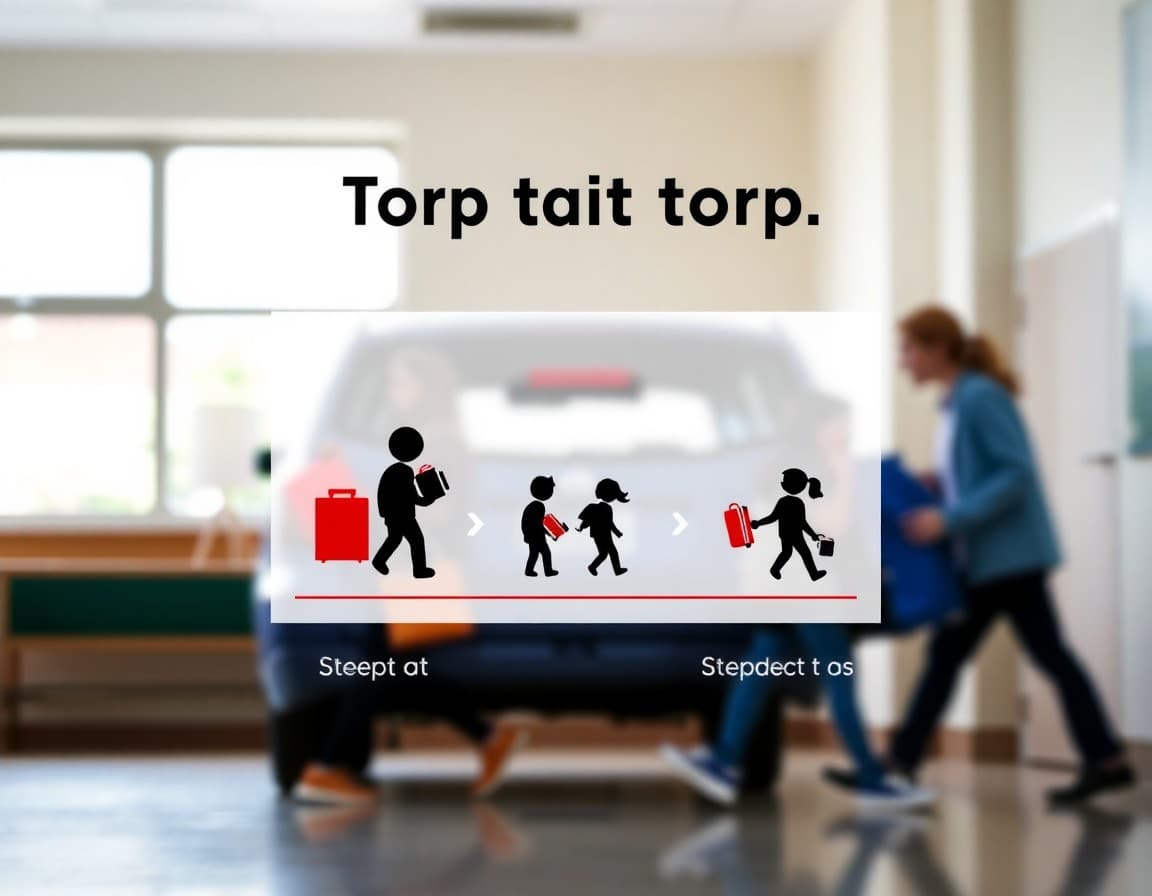
Some information communicates better as a visual than as text. A schedule with four time blocks, a three-step registration process, a year-over-year attendance comparison: these are faster and clearer as infographics than as sentences. Here is how to use visuals effectively in your school newsletter without needing a graphic design background.
When to Use an Infographic Instead of Text
The test is simple: can you explain this clearly in two sentences, or does it require five? If it requires five, a visual might be faster. Processes with defined steps, data with a comparison, and schedules with visual time slots are the strongest candidates. If the information has sequence, hierarchy, or proportion, it benefits from visual representation. If it is a single fact or a narrative, text is fine.
The Schedule Infographic
One of the most common and useful infographics in school newsletters is a simple daily or weekly schedule. A visual layout of the school day, a color-coded lunch schedule, or a visual calendar showing when assessments fall throughout the semester. Parents who receive a visual schedule remember it better than a written one. A three-column table showing Monday, Wednesday, and Friday schedules alongside Tuesday and Thursday schedules is all you need. No design tools required.
The Process Infographic
Families navigate processes constantly: how to pick up a sick child, how to request a schedule change, how to set up a parent account on the school portal. A three or four-step visual process with simple icons and labels is faster to follow than a numbered paragraph. You can create these in Canva with a template, or even in Google Slides with basic shapes and text boxes. The goal is reducing confusion, not winning a design award.
The Data Infographic
If you want to share attendance data, reading proficiency rates, or survey results in a way families will actually read, a simple visual outperforms a table every time. But keep it to two or three data points maximum. A bar chart comparing this year's chronic absence rate to last year's is easy to grasp in five seconds. A detailed multi-variable chart that requires reading a legend is not. In a newsletter, simple always wins over comprehensive.
The Comparison Infographic
When parents need to choose between two options, a side-by-side visual makes the comparison immediate. A lunch program overview, a comparison of two after-school program schedules, or an explanation of two grading approaches benefit from this format. Two columns, equal height, clear headers, and three or four labeled attributes in each. Simple to create, easy to read.
What Makes a Newsletter Infographic Fail
The most common infographic failure in school newsletters is illegibility on mobile. A wide image that looks fine on a desktop email becomes a tiny, unreadable strip on a phone. Before including any infographic, send a test email to yourself and check it on your phone. If you have to zoom to read it, families will not bother. The second most common failure is including too much information. An infographic that tries to show everything shows nothing clearly. Edit the content before you design the visual.
Starting Without Design Tools
You do not need Canva or any specialized tool to include useful visuals in your newsletter. A Google Slides slide exported as an image works fine. A table with color fills in Google Docs, screenshot and pasted as an image, works fine. The design quality matters less than the clarity of the information. Start with the simplest possible version, test it on your phone, and refine from there. Daystage accepts standard image formats and handles sizing automatically, so you can focus on the content rather than the technical side of getting the image into the newsletter.
Get one newsletter idea every week.
Free. For teachers. No spam.
Frequently asked questions
What kinds of information work best as infographics in a school newsletter?
Processes with clear steps, schedules with visual time divisions, comparisons between two options, data with a few clear data points, and lists that have a natural visual hierarchy. Information that would require a long paragraph to explain in text often becomes much clearer as a simple visual with labels.
Do I need graphic design skills to include infographics in my newsletter?
No. Tools like Canva, Google Slides, and even well-formatted tables in a word processor can produce simple infographics. The goal is clarity, not visual complexity. A clearly labeled timeline with three columns is more useful than an elaborate chart that takes five minutes to understand.
How do I keep infographics accessible for families with visual impairments?
Include the key information from any infographic as plain text either in the caption or in the body of the newsletter. Screen readers cannot interpret images, so a beautiful infographic is completely inaccessible to families using assistive technology unless the underlying data is also available as text.
How large should an infographic be in a school newsletter?
Wide enough to read on a phone without zooming in. A single-column layout that fills the full email width works best. Multi-column infographics that require wide screens to read correctly will be unreadable on mobile and most parents read newsletters on their phones.
What newsletter platform supports easy infographic inclusion?
Daystage lets you insert images directly into your newsletter layout. You can drop in an infographic you created externally and it will resize automatically for both desktop and mobile. The editor handles the technical formatting so you do not have to worry about how the image will render across different devices.

Adi Ackerman
Author
Adi Ackerman is a former classroom teacher and curriculum writer with 8 years in K-8 schools. She writes about school communication, parent engagement, and what actually works in real classrooms.
More for Guides
Ready to send your first newsletter?
3 newsletters free. No credit card. First one ready in under 5 minutes.
Get started free