

How to Write a Seesaw Introduction Newsletter to Families
Seesaw is one of the most engaging parent communication platforms available in elementary and early middle school settings, but its value depends entirely on whether families are actually connected and checking in. A clear introduction newsletter is the difference between a classroom where families regularly see their student's learning journey and a classroom where Seesaw sits unused because the connection process was never clearly explained.
Explain what Seesaw is in plain language
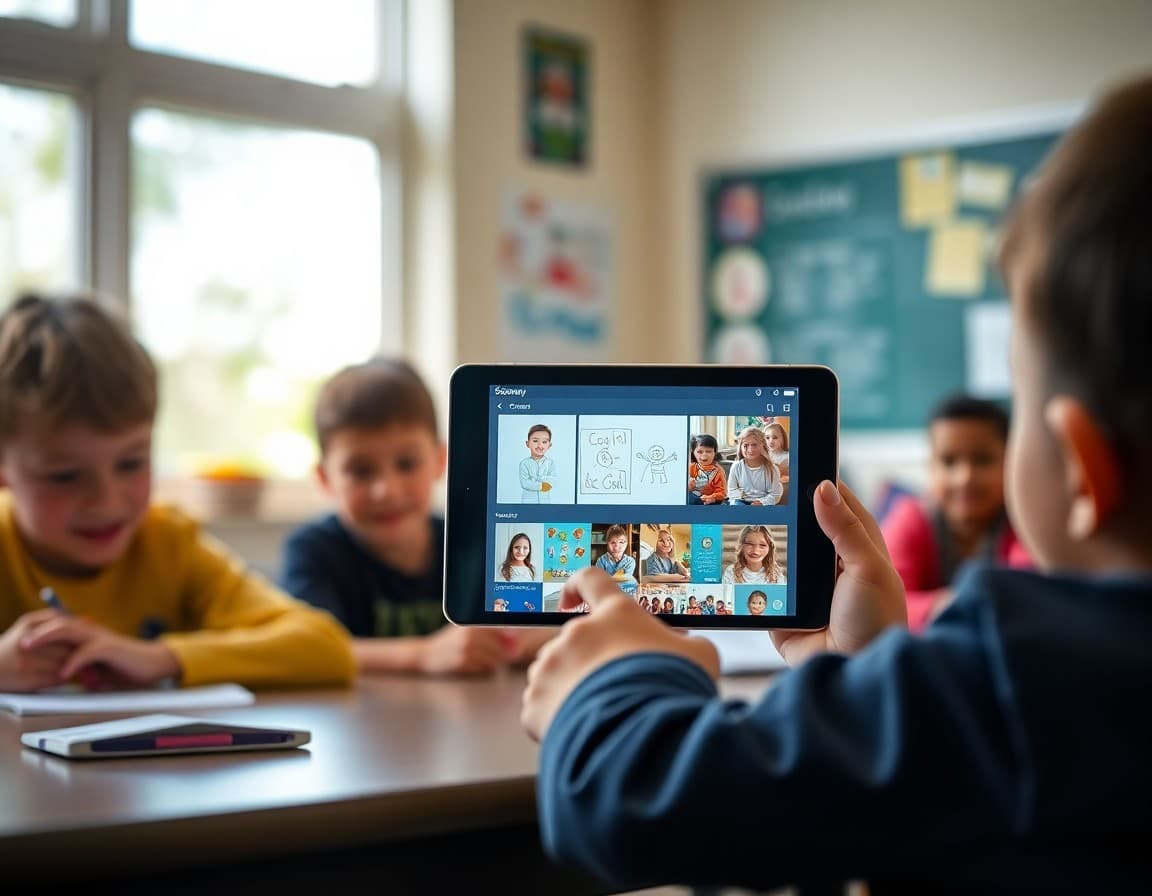
Start with a clear description. Seesaw is a digital portfolio platform where students document and share their learning through photos, videos, drawings, voice recordings, and written reflections. Families can see their student's posts in real time through the Family app. It is a window into the daily learning experience that goes far beyond what a progress report can show.
Walk families through the connection process
Be specific. The Family app and the Student app are different. Families should download the Seesaw Family app, not the Seesaw Class app. Then connect to your classroom using the invite link or code you include in the newsletter. Including a QR code that links directly to your classroom connection is a simple addition that eliminates the code-entry step and increases completion rates.
Describe what the Family app shows
Once connected, families see a feed of their student's posts. Only their own student's work is visible, not other students'. They can see items their student has posted, teacher feedback, and class announcements if you use that feature. Walking families through what the feed looks like reduces confusion when they open the app for the first time.
Explain how to engage meaningfully
Seesaw allows families to like and comment on posts. Encourage them to use this feature as a way to start conversations with their student rather than just leaving a heart. Include two or three specific prompts families can use: "Tell me about this," "What did you do when you got stuck," "What would you do differently next time." These questions are far more useful than generic praise and reinforce the reflective habits Seesaw is designed to build.
Set expectations for post frequency
Tell families approximately how often they will see new posts. Daily? A few times a week? For specific projects and units only? Families who have calibrated expectations check the app at the right frequency and are not concerned when a few days pass without a new post.
Address privacy clearly
Reassure families that posts are private to your classroom community. Students' work is not publicly visible and cannot be accessed by people outside your class. If you are using Seesaw's family-sharing settings rather than public posts, note that. Families who understand the privacy settings trust the platform and are more likely to engage actively with it.
Note alternatives for families without smartphones
Seesaw Family is accessible on any browser, not just through the app. Families who do not have a smartphone can connect through a computer or tablet browser using the same invite link. Note this in your newsletter so no family feels excluded by not having a specific device type.
Daystage works well alongside Seesaw as a dedicated newsletter tool for structured classroom updates. Use Seesaw for portfolio sharing and visual learning documentation and Daystage for your regular family newsletter so families have both the day-to-day visual feed and the deeper communication they need to be real partners in their student's learning.
Get one newsletter idea every week.
Free. For teachers. No spam.
Frequently asked questions
What should a Seesaw introduction newsletter include?
What Seesaw is and how you use it in your classroom, how families download and connect to your class, what the Family app looks like versus the Student app, how to respond to and encourage their student's posts, how often families should expect to see new posts, and privacy settings for the classroom journal.
How do families connect to Seesaw?
Families download the Seesaw Family app (different from the Student app) and connect using an invite code or link you provide. Your newsletter should include the specific invite link or QR code and walk through the connection steps clearly. The more specific the instructions, the higher your connection rate.
What can families do in the Seesaw Family app?
Families can view their student's posts, leave comments and likes, see teacher feedback, and in some configurations receive class messages. They see only their own student's work, not other students' posts. Clarifying this in your newsletter reassures families about privacy.
How do I encourage meaningful family engagement with Seesaw posts?
Give families specific conversation starters for responding to posts. 'What were you trying to figure out here?' or 'What was the hardest part of this?' are more powerful than 'great job.' Your newsletter can include two or three specific questions families can use to start conversations with their student about their digital portfolio.
What tool works alongside Seesaw for classroom newsletters?
Daystage is a strong complement to Seesaw. Use Seesaw for portfolio sharing and visual learning updates and Daystage for structured newsletter communication that covers curriculum, events, and classroom culture in more depth.

Adi Ackerman
Author
Adi Ackerman is a former classroom teacher and curriculum writer with 8 years in K-8 schools. She writes about school communication, parent engagement, and what actually works in real classrooms.
More for Classroom Teachers
Ready to send your first newsletter?
3 newsletters free. No credit card. First one ready in under 5 minutes.
Get started free