
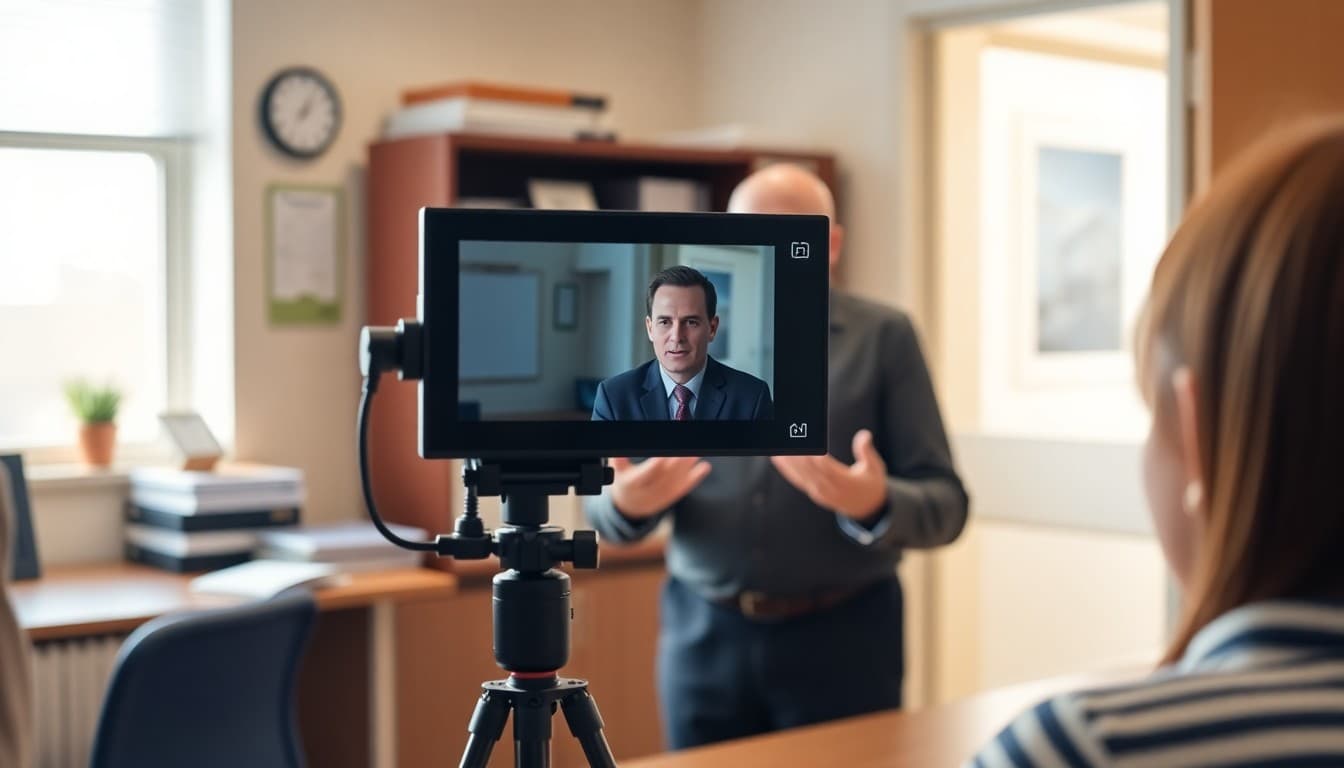
How to Add a Video Message to Your School Newsletter
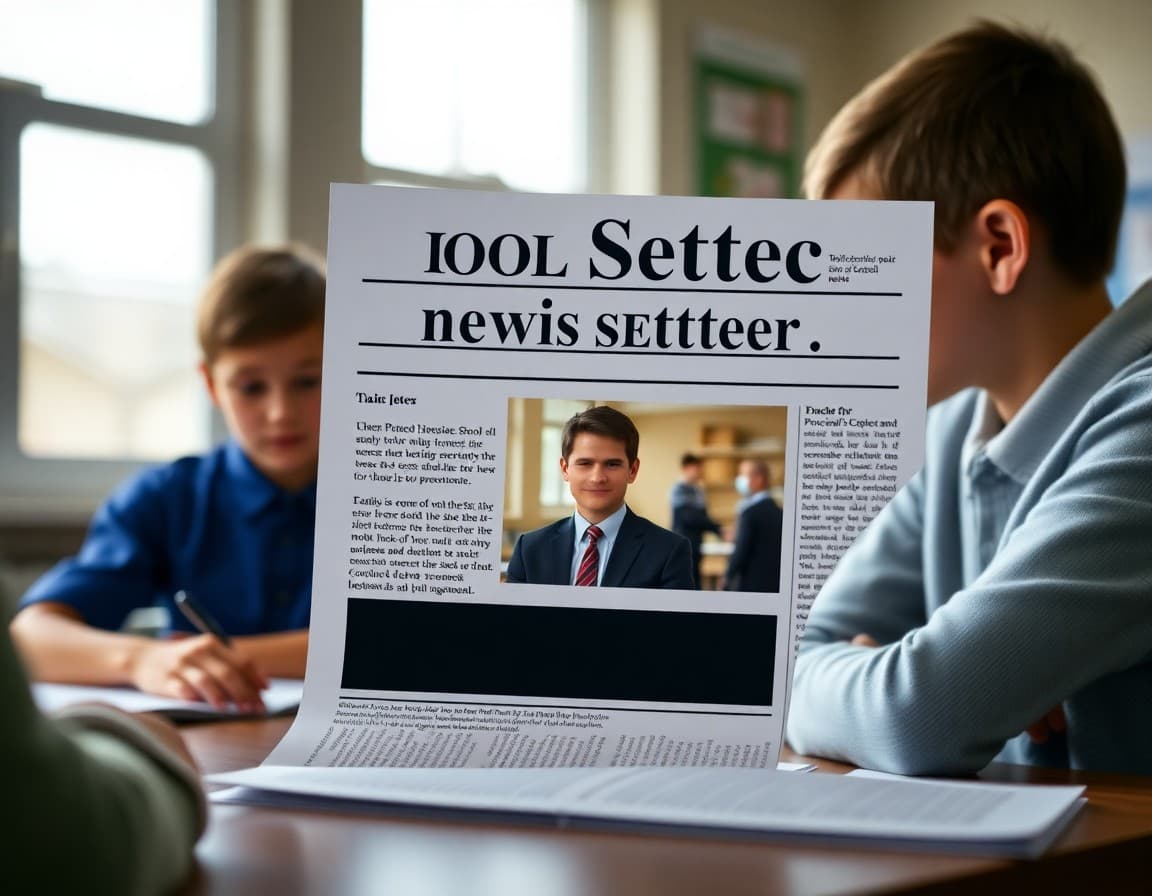
A principal who parents see and hear every week in the newsletter becomes a familiar face even to families who rarely set foot in the building. Video messages in newsletters build community, increase open rates, and give school leaders a communication channel that written text simply cannot replicate. Here is how to start recording and including them without turning it into a production project.
Starting Simple: One Phone, One Message
The barrier to adding video is almost entirely psychological. You do not need a school communications team, a ring light, or video editing software. You need a smartphone and a place with decent lighting. Start with a 60-second message recorded on your phone on Thursday morning before the newsletter goes out. No script required; three points you want families to know this week is enough. Week one will feel awkward. By week six, it will feel like part of your routine, and families will start mentioning that they watch it every Friday.
What to Say in the Video Message
A 90-second video message works well with this structure: Open with one specific thing you observed in the school that week (10 seconds). Name two or three things families should know or do in the coming week (45 seconds). Close with a warm, forward-looking sentence (10 seconds). This is identical to a written principal message but delivered with eye contact, tone, and presence. The opening observation is the most important part because it signals to parents that you are present and paying attention: "I spent time in the kindergarten classrooms on Tuesday watching students work through their writing projects. The amount of thinking happening in those rooms is impressive."
Recording Setup Tips
Four things that make a big difference in video quality without any equipment purchases: (1) Film in landscape (horizontal) mode, not portrait. Landscape fills the screen properly when viewed on a computer or tablet. (2) Place the phone at eye level on a stack of books or a small box; looking down into a phone on a desk gives parents an unflattering view of the top of your head. (3) Stand with a window to your side rather than behind you. The natural side-light creates a clear, professional look in under five seconds. (4) Speak to the camera lens directly, not to your own image on the screen. Eye contact through the lens creates the sense of direct engagement that makes video messages feel personal.
Uploading and Hosting the Video
YouTube is the simplest hosting option. Create a school YouTube channel (you can set it so no subscribers are needed and content is unlisted from public search). Upload the video, set it to "Unlisted" so only people with the link can view it, and copy the video URL. Unlisted means the video will not appear in YouTube search results but is accessible to anyone who has the link from the newsletter. For schools concerned about any YouTube visibility, Loom is an alternative that hosts videos privately and generates a shareable link without a public platform component.
Embedding the Video Thumbnail in the Newsletter
Take a screenshot of the video at a good frame (a moment where you look engaged, not mid-blink) and save it as an image file. Open the screenshot in a basic image editor (Google Slides, Canva, or Preview on a Mac), overlay a simple play button graphic (a white or red circle with a triangle in the center), and save the composite as a JPEG. Upload this as an image in your newsletter, link the image to the YouTube URL, and add a caption: "Click to watch this week's principal message (90 seconds)." This thumbnail approach works in all email clients and gives parents a visual preview before clicking.
Building a Video Message Habit
The principals who get the most mileage from newsletter video messages are the ones who treat it as a non-negotiable 10-minute weekly commitment rather than an optional addition for weeks when they have extra time. Schedule the recording into your calendar on Thursday or Friday morning. Keep your phone charged and positioned near a window at all times so there is no setup friction. The first 10 video messages establish the habit. After that, families expect it and mention it when they see you. That expectation is the community connection you are building.
Handling Video Accessibility
Video messages are not accessible to parents who are Deaf or hard of hearing without captions. YouTube provides automatic captioning for uploaded videos, which is imperfect but covers most speech correctly if you speak clearly. Review the auto-generated captions before sending the newsletter link and correct any significant errors. For school communities with a significant Deaf or hard of hearing parent population, a professional transcription of the video message posted alongside it in the newsletter is the accessible standard. Adding a two-to-three sentence text summary of the video in the newsletter body serves all parents and gives those who prefer text an equivalent alternative.
Get one newsletter idea every week.
Free. For teachers. No spam.
Frequently asked questions
Why add video messages to a school newsletter?
Video adds a human element that written text cannot replicate. Parents who watch a 90-second principal message see facial expressions, hear tone of voice, and feel the person behind the communication in a way that a written paragraph does not convey. Email research consistently shows that newsletters with video thumbnails have 200 to 300 percent higher click-through rates than text-only newsletters. For schools that are trying to build parent trust after a difficult period, a consistent weekly video message from the principal is one of the most effective trust-building tools available.
What equipment do you need to record a newsletter video message?
A smartphone camera and good natural lighting is enough. Most modern smartphones record in 1080p HD video, which is more than adequate for a school newsletter message viewed on a laptop or phone screen. Point the camera at eye level, stand near a window for natural light (avoid having the window behind you, which silhouettes your face), and speak clearly at a normal pace. Background matters too: a tidy office or a classroom bookshelf looks professional. A cluttered desk or a blank white wall are both distracting for different reasons.
How long should a principal's video message in the newsletter be?
60 to 90 seconds for a weekly video message. Two to three minutes maximum for a major announcement or special edition. Parents who open the newsletter while waiting for pickup or between meetings will not commit to a five-minute video from someone they have met twice. 90 seconds is long enough to say something meaningful and short enough to watch in the parking lot before driving away. Record to a timer rather than editing after; it is faster and teaches you to say what matters without filler.
How do you embed video in an email newsletter?
Email clients do not natively play embedded video because of spam and security restrictions. The workaround is to upload the video to YouTube (public or unlisted), Loom, or Vimeo, and embed a screenshot thumbnail from the video in the newsletter with a play button graphic overlaid. When parents click the thumbnail, they are taken to the video platform where it plays. This is the standard approach used by every major email newsletter platform. Your newsletter tool may handle this automatically when you paste a YouTube link.
Does Daystage support video in school newsletters?
Yes. Daystage has a video block that accepts YouTube and Vimeo URLs. Paste the video URL into the block and Daystage automatically generates a thumbnail with a play button. When parents click in the email, they are taken to the video platform. In the web version of the newsletter, the video may embed and play directly. This makes adding a principal video message as simple as copying a YouTube link into the newsletter editor, with no technical configuration required.

Adi Ackerman
Author
Adi Ackerman is a former classroom teacher and curriculum writer with 8 years in K-8 schools. She writes about school communication, parent engagement, and what actually works in real classrooms.
More for Guides
Ready to send your first newsletter?
3 newsletters free. No credit card. First one ready in under 5 minutes.
Get started free