

Images in School Newsletters: What Works, What Slows Delivery, and Photo Privacy Rules
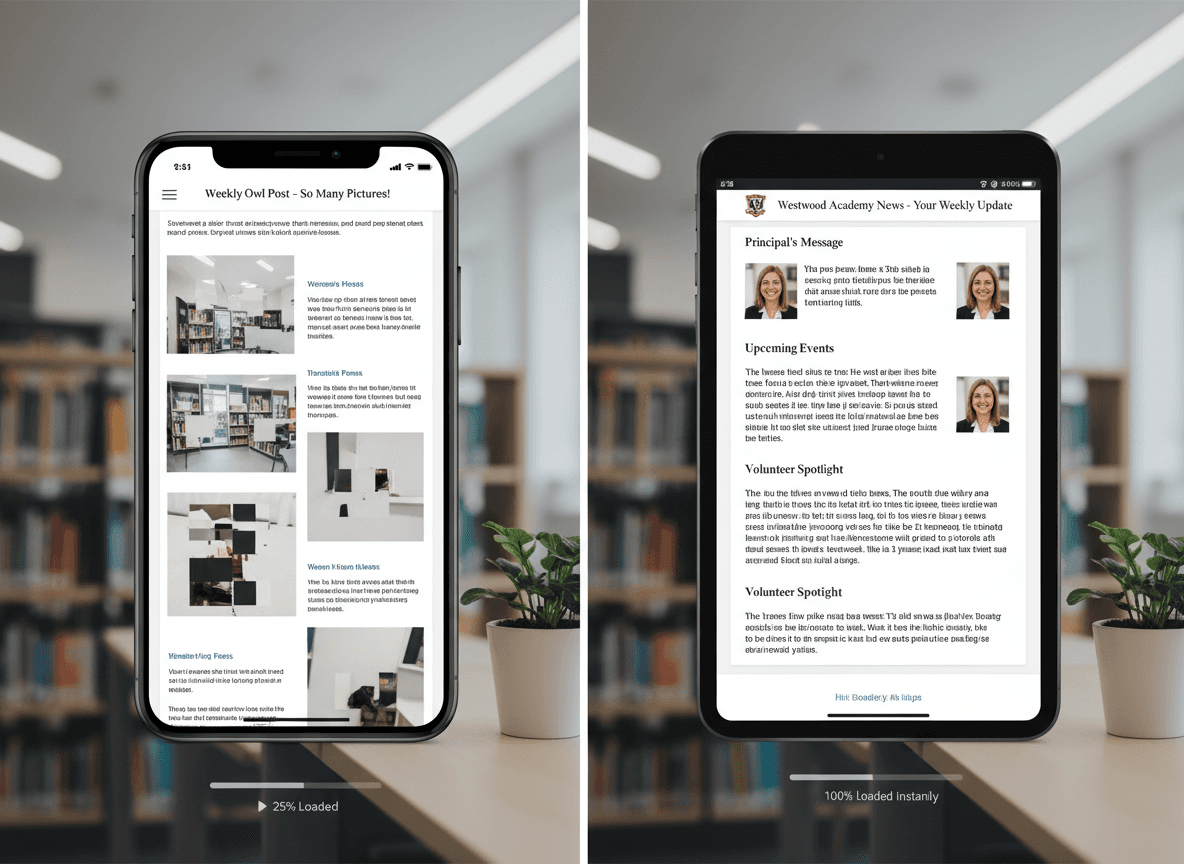
A well-placed classroom photo can double the engagement on a school newsletter. A poorly handled image can land the same newsletter in spam or create a serious privacy problem. The difference between the two comes down to a few decisions most teachers have never been taught to make.
How image-to-text ratio affects deliverability
Spam filters evaluate the ratio of images to text in an email. A newsletter that is mostly one large image with a short caption looks, from a filter's perspective, exactly like a promotional flyer. The filter cannot read the image, so it assigns low content value to the message and routes it to spam.
The safe ratio for school newsletters: no more than 40% of the email's visible area should be images. That means for every image, there should be roughly twice as much text. A classroom photo with a short caption surrounded by nothing is a deliverability risk. The same photo placed inside a well-structured newsletter with multiple text sections is fine.
If you are sending newsletters and getting low open rates (below 25%), check whether your template is image-heavy. Switching to a text-primary layout with one or two supporting images often recovers 10 to 15 percentage points of open rate.
File size limits and why they matter
Images that are too large slow email load times and increase the likelihood that a parent's email client displays a broken image placeholder rather than the actual photo.
For school newsletter images, keep individual files under 200KB. A photo from a smartphone is typically 3-8MB as captured. Before using it in a newsletter, compress it. Most newsletter tools compress automatically on upload, but it is worth confirming this with your tool. If you are manually preparing images, tools like Squoosh (free, browser-based) compress images without visible quality loss.
Maximum recommended dimensions for email images: 600px wide. Wider images get scaled down by email clients anyway, so you are sending unnecessary file size with no visual benefit.
FERPA and photo consent: what the law requires
FERPA (Family Educational Rights and Privacy Act) protects student educational records, but school photo policies are typically governed by a separate consent process, usually a media release form that families sign at enrollment.
Before publishing any student photo in a newsletter, you need to know two things:
- Does your school use a directory information opt-out system? Under FERPA, schools can designate photos as directory information and publish them unless a family opts out. If your school does this, you need to know which families have opted out before including group photos in newsletters.
- What does your school's media release form actually authorize? Many forms authorize photos on the school website but are silent on email newsletters sent to other parents. Read the form before assuming email publication is covered.
When in doubt: do not publish photos of students whose families have not explicitly consented. If you are unsure about any student, photograph classroom materials, bulletin boards, student artwork (without names showing), or the physical classroom environment instead.
What images improve engagement vs. hurt delivery
Images that consistently improve newsletter engagement:
- Classroom photos showing students engaged in activities (with appropriate consent)
- Photos of student work displayed on boards or tables
- Photos of classroom projects or experiments
- Simple event graphics or date reminders as visual anchors
Images that hurt deliverability or create problems:
- A single large banner image used in place of a text introduction
- Multiple large decorative background images that add no content value
- Stock photos unrelated to your actual classroom (they add weight without relevance)
- Scanned flyers or documents embedded as images instead of text (these cannot be read by spam filters or screen readers)
Alt text for accessibility
Every image in a school newsletter should have alt text: a short text description that appears when the image cannot load, and that screen reader software reads aloud for visually impaired users.
Good alt text describes what is happening in the image, not just what it is. "Students working on science experiment" is better than "classroom photo." "Book fair flyer: April 14-18, Library" is better than "flyer image."
Many parents receive newsletters in conditions where images are blocked by default (corporate firewalls, low-bandwidth connections, or email client settings). A newsletter with good alt text communicates even when the images do not load.
When to embed images vs. link out
Most newsletter tools embed images by hosting them on their servers and referencing them in the email with an image tag. This is the standard approach and works well for the classroom photos and graphics described above.
Link out to external content when the image or file is large, the content is a full document (a PDF permission slip, a multi-page flyer, a video), or the material requires authentication to access. Linking out reduces email size, avoids deliverability penalties from attachment-heavy emails, and gives you click data on who accessed the content.
Never embed videos directly in newsletter emails. Embedded video is not supported in most email clients and will display as a broken element. Link to a YouTube, Vimeo, or school portal video instead, with a compelling thumbnail image as the clickable element.
A practical image checklist before sending
Before sending any newsletter with images, run through this list:
- Does each student in any photo have a valid consent on file?
- Is each image under 200KB and 600px wide?
- Is there at least twice as much text as image area in the newsletter?
- Does each image have descriptive alt text?
- Do all image links resolve correctly (no broken images)?
Daystage compresses images automatically on upload, generates alt text prompts at the time you add an image, and uses MJML-compiled email code that handles image rendering correctly across Gmail, Outlook, and Apple Mail. This handles the technical side so you can focus on choosing the right photos and checking consent.
Get one newsletter idea every week.
Free. For teachers. No spam.
Frequently asked questions
When should teachers include images in school newsletters, and when should they avoid them?
Include images when you have a compelling classroom moment worth sharing and you have confirmed consent for all identifiable students. Avoid images when you are including stock photos just to fill space, when the image is larger than 100KB, or when you have not verified the photo release status of the students shown. Images add value only when they are specific and relevant.
What should teachers know about image-to-text ratio in school newsletters?
Spam filters evaluate the ratio of image content to text content. Newsletters that are more than 40 percent images with minimal surrounding text are more likely to be flagged as spam. A good rule is at least 60 percent text to 40 percent images. If you include a large photo, write a meaningful caption and surround it with substantive text.
How should teachers optimize images for school newsletters to avoid delivery problems?
Keep image files under 100KB. Use JPEG for photos and PNG only for logos or images with transparency. Avoid embedding images that are larger than 600 pixels wide, which is the standard email width on mobile. Compress images before uploading using a tool like Squoosh or TinyPNG. Large images cause emails to load slowly on mobile and can trigger spam filters.
What are common image mistakes teachers make in school newsletters?
Including photos of students without verifying photo consent is the most legally significant mistake. On the technical side, embedding full-resolution photos from a phone (often 3 to 5MB) causes emails to load extremely slowly or not at all on limited data connections. Always resize and compress before including.
What is the best tool for teachers who want to add images to school newsletters without hurting deliverability?
Daystage handles image optimization within the newsletter editor and uses proper image embedding practices in the generated MJML email code. This means images are served from a CDN rather than embedded directly, which keeps email file sizes small and improves load times for parents on mobile connections.

Adi Ackerman
Author
Adi Ackerman is a former classroom teacher and curriculum writer with 8 years in K-8 schools. She writes about school communication, parent engagement, and what actually works in real classrooms.
More for Guides
Ready to send your first newsletter?
3 newsletters free. No credit card. First one ready in under 5 minutes.
Get started free