

How to Use Google Forms in Your School Newsletter
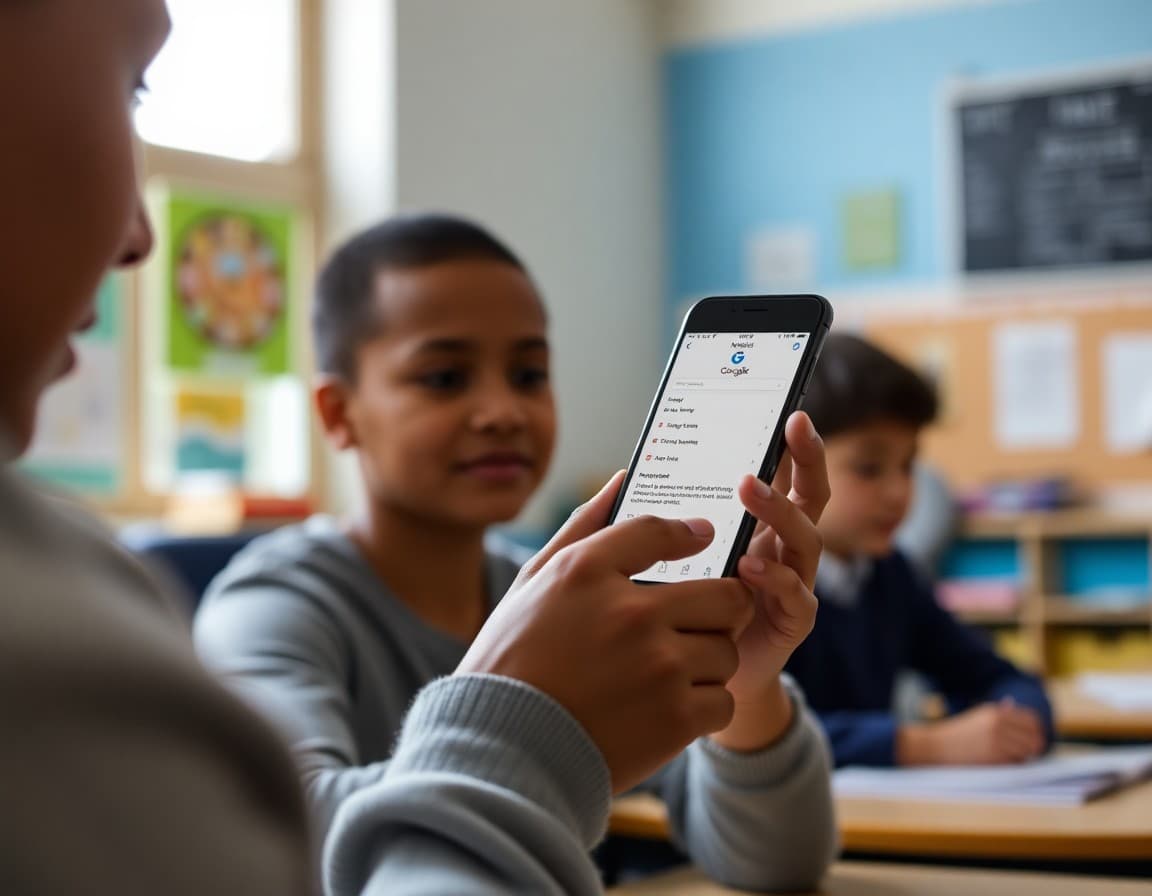
Google Forms is one of the most practical tools available to school communicators. It is free, familiar to most educators, and produces organized response data automatically. Adding it to your school newsletter for RSVPs, permission slips, and parent input surveys is straightforward once you understand how the link process works.
How the Google Forms Link Process Works
Google Forms cannot be embedded and completed inside an email. This is a technical limitation of email clients, not a limitation of Google Forms itself. The correct workflow: create the form, copy the shareable link, include that link as a button or hyperlinked text in your newsletter. Families click the link, their browser opens the form, they complete it, and responses automatically populate your Google Sheet.
This workflow works reliably in every email client including Gmail, Outlook, and Apple Mail. There is no technical complexity on the newsletter side; it is just a link.
Creating a Form for Your Newsletter
For a simple event RSVP: Create a new form at forms.google.com. Title it with the event name. Add a first question: Name (short answer). Add a second question: How many people in your family are planning to attend? (multiple choice: 1, 2, 3, 4 or more). Add a third question: Any dietary restrictions for the dinner? (short answer, optional). Under Settings, decide whether to collect email addresses.
For a permission slip: Add a signature field or a confirmation checkbox. "By completing this form, I give permission for [Student Name] to participate in [Activity]." Collect the student's full name, the parent's name, and an email address. Set the form to require a Google login to prevent duplicates.
Getting the Right Link Format
When you share a Google Form, there are several link types available. The standard form link is what you want for newsletter inclusion: it opens the form for completion. Do not share the "edit" link, which lets anyone edit the form structure. Under the form's send button, click the link icon to copy the standard response link. If the link is long, you can use a URL shortener like bit.ly to create a shorter version that is easier to include in text-heavy newsletters.
Button Versus Inline Link in the Newsletter
For primary calls to action like permission slips and event RSVPs, a button with a colored background is more visible than a text link embedded in a paragraph. Most newsletter platforms let you add a button block and enter any URL. A button labeled "Complete the Permission Slip" or "RSVP for Field Day" is more likely to be clicked than the same link buried in the fifth sentence of a paragraph about the event.
For secondary or informational links, like a link to a survey that is relevant but not urgent, a text hyperlink is fine.
Template for a Google Form Section in a Newsletter
Here is how to frame a Google Form link in your newsletter:
"Permission Slip for the Fall Nature Center Trip: All students in grades 3 and 4 will visit the [Nature Center Name] on [Date]. Permission slips are required for all students. Complete the digital permission slip at the link below by [Deadline]. [Button: Complete Permission Slip]. If you prefer a paper copy, pick one up at the main office. Questions? Contact your child's teacher."
Managing and Following Up on Responses
Set up a Google Sheets notification to receive an email each time a new response is submitted. This lets you monitor completion in real time without having to open the form repeatedly. A few days before your deadline, filter the response sheet against your class roster to identify families who have not yet completed the form. A targeted follow-up to non-responding families is more efficient than a school-wide reminder.
Privacy Considerations for Google Forms
Google Forms responses are stored in Google's infrastructure. If your district uses Google Workspace for Education, this storage is governed by your district's agreement with Google, which includes FERPA-compliant data handling for student information. If you are collecting student names, grades, or other personal information, use a form associated with your district Google account, not a personal Gmail account. Check with your district's technology coordinator about data governance requirements for your specific use case.
Get one newsletter idea every week.
Free. For teachers. No spam.
Frequently asked questions
Can you embed a Google Form directly inside a school newsletter email?
No. Google Forms cannot be embedded to display and function inside an email message. Email clients do not support the JavaScript that Google Forms requires. The correct approach is to include a clickable link to the Google Form in your newsletter. Families click the link, the form opens in their browser, they complete it, and responses are saved to the connected Google Sheet. This works in all email clients.
How do you create a Google Form for a school newsletter?
Go to forms.google.com and click the plus button to create a new form. Add your questions, choosing the right question type for each: multiple choice for options, short answer for text, date for scheduling questions. Under Settings, require Google sign-in if you want to track who responded, or leave it off for anonymous responses. Under Responses, check 'Collect email addresses' if you need it. When ready, click the share button and copy the link to include in your newsletter.
Should school Google Forms require Google login to complete?
It depends on the use case. Requiring a Google account login prevents duplicate submissions and lets you track who has and has not responded, which is useful for permission slips. However, it creates a barrier for families who do not have or do not remember their Google account. For surveys where anonymous feedback is acceptable, no login required produces higher completion rates. For permission slips where you need to know which families responded, requiring login or collecting email addresses makes sense.
How do you see Google Form responses after sending the newsletter?
Google Forms saves responses to a connected Google Sheet automatically. Open the form, click the Responses tab, and either view the summary charts or click the spreadsheet icon to open the full response data in Google Sheets. You can filter, sort, and search responses in the spreadsheet. Set up email notifications in Forms settings to receive an alert whenever a new response is submitted.
What newsletter platform works well alongside Google Forms for school communications?
Daystage integrates smoothly with Google Forms links. You include the form link as a button or inline link in your Daystage newsletter. Responses go directly to your Google Sheet. Daystage also has its own built-in RSVP feature for simpler one-click responses where families do not need to leave the newsletter at all, which is worth considering for basic yes or no RSVPs.

Adi Ackerman
Author
Adi Ackerman is a former classroom teacher and curriculum writer with 8 years in K-8 schools. She writes about school communication, parent engagement, and what actually works in real classrooms.
More for Guides
Ready to send your first newsletter?
3 newsletters free. No credit card. First one ready in under 5 minutes.
Get started free